Mastering Sage Software Knowledge Base: Guide for Business Analysts
Introduction
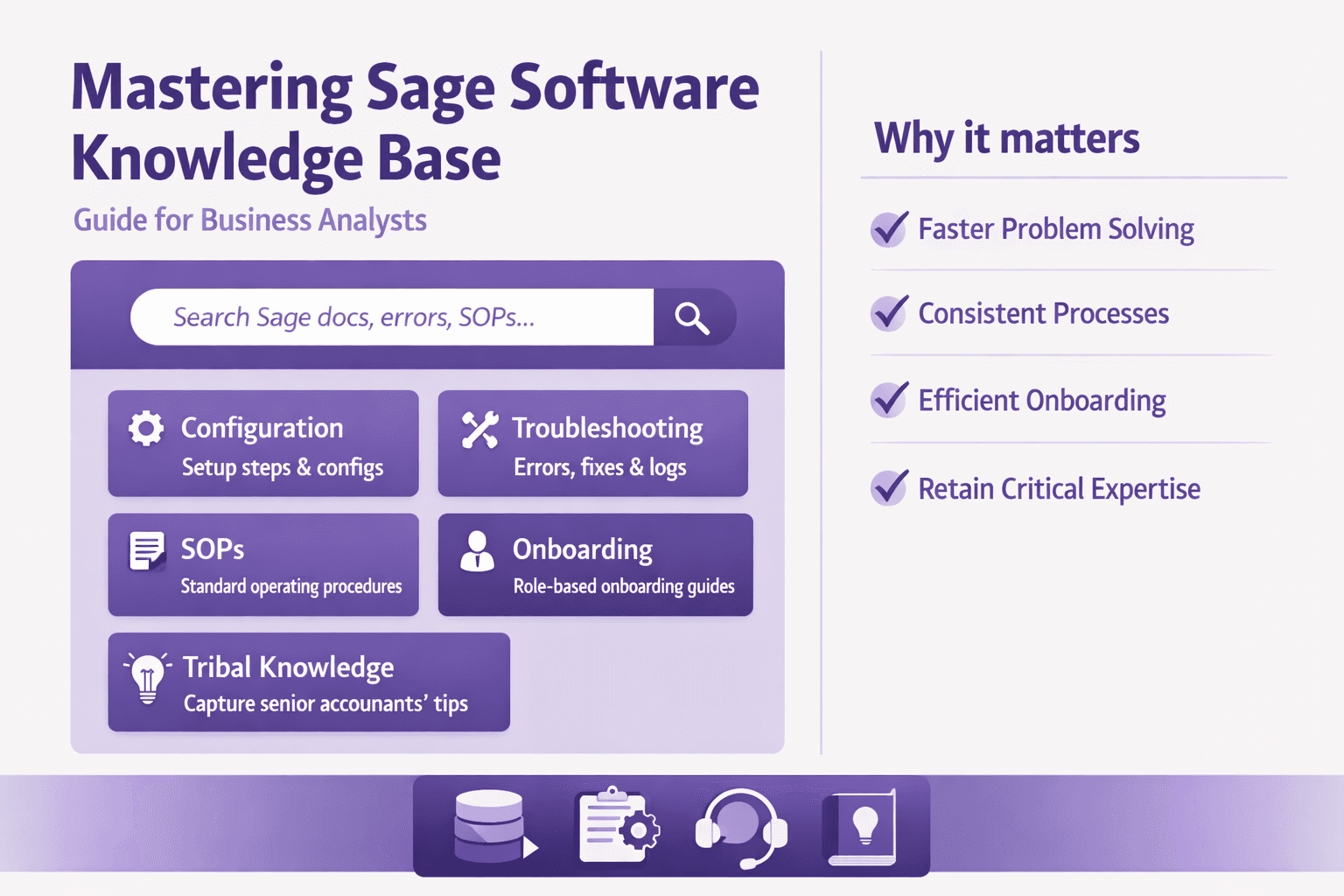
If your organization runs Sage—Sage Intacct, Sage X3, Sage 50, or any of the other Sage products—you already know it’s a core piece of finance and operations. A sage software knowledge base is a centralized, searchable repository that documents how your company uses Sage: configuration steps, common errors and fixes, standard operating procedures (SOPs), onboarding guides, and the tribal knowledge usually trapped in one or two senior accountants’ heads.
This guide is written for business analysts, consultants, operations managers, and tech consultants who want to make Sage predictable and repeatable. You'll get practical setup advice, templates, search tips, and automation ideas so you can reduce support tickets, speed onboarding, and get consistent processes across teams.
Expected outcomes if you do this well:
- Fewer repetitive support tickets (expect 20–40% deflection on common issues within 3–6 months)
- Faster onboarding (new user ramp time cut by 30–60%)
- Consistent operations and fewer month-end surprises
- Clear audit trails for changes and approvals
Let’s get into how to make a knowledge base people actually use.
Why a Sage Software Knowledge Base Matters
Ticket deflection and faster resolution
Most Sage support work is repetitive: "How do I post a reversing entry?", "Why is my bank feed not matching?", "How do I set up a new vendor?" A knowledge base stops those tickets at the source when articles are discoverable.
Real numbers: if you publish 50 high-value articles that cover 10–15 high-volume ticket types, you can expect 20–40% ticket deflection in 3 months. Move to 100 articles covering workflows and SOPs and you’ll see larger, sustained drops. Use search analytics to confirm which articles are reducing ticket volume.
Example: Company A (mid-market retail) saved an estimated 120 support hours/month after publishing 75 how-tos for their Sage X3 purchase-to-pay workflows. They measured time saved by linking ticket origins to article views.
Accelerating onboarding and training
Onboarding that relies on shadowing or ad-hoc video snippets is brittle. Replace that with structured, step-by-step articles and short screen recordings tied to each major task—accounts payable, bank reconciliation, intercompany eliminations. That reduces first-month errors and helps new hires hit month-end deadlines.
Benchmark: a three-month onboarding program that includes structured knowledge base content typically reduces rookie mistakes by 50% and speeds independent productivity by roughly 30–50%.
Practical example: Create a "30/60/90 Day" learning path inside the knowledge base. Day 1–30: core navigation and posting transactions. Day 31–60: reconciliations and reporting. Day 61–90: configuration and small automations.
Standardizing processes and preserving tribal knowledge
Business analysts and consultants know how fragile undocumented processes are. When someone leaves, undocumented shortcuts go with them. A knowledge base captures how your business applies Sage—approved journals, custom fields, reporting conventions, intercompany rules.
Concrete tip: For any process that touches GL accounts, make a template article that includes:
- Purpose and owner
- Step-by-step procedure
- Screenshots and expected screenshots after each major step
- Troubleshooting checklist
- Change history and approval status
Quantifying ROI: metrics to show stakeholders
Don't sell a knowledge base as vague value. Use numbers:
- Ticket deflection rate = (Tickets prevented by KB) / (Total tickets) × 100
- Track via ticket backlinks: when an agent links to KB, mark the ticket as KB-assisted.
- Time-to-resolution improvement = Average resolution time before / after KB launch
- Onboarding time reduction = Average time-to-first-independent-task before / after
- Cost savings = Agent hourly rate × support hours saved
Example slide for stakeholders:
- Baseline: 800 Sage-related tickets/year; average 45 minutes/ticket.
- After KB launch: 25% deflection → 200 fewer tickets → 150 hours saved.
- At $40/hour support cost → $6,000/year saved (conservative).
Add soft benefits: faster audits, fewer month-end surprises, improved compliance.
Planning, Governance, and Stakeholders
This is where most projects fail: great content, no ownership. Fix that with clear roles and rules.
Identify roles
Map these roles to people and back them with SLAs.
- Content Owner: Business analyst or subject-matter expert who owns accuracy. For example, AP Manager owns all AP articles.
- Reviewer: Finance or IT reviewer who checks compliance and controls.
- Editor: Technical writer or operations analyst who rewrites for clarity and style.
- Approver: Controller/CFO for final sign-off on policies and procedures.
- Platform Admin: Person who manages categories, permissions, integrations.
Assign names and backups. Don’t leave roles as abstract titles.
Governance model
A governance model should define lifecycle, update SLAs, and version control.
Minimum governance items:
- Article lifecycle: Draft → Review → Approved → Published → Archived
- Update SLA: Content owners must review high-risk pages quarterly, medium-risk semi-annually, low-risk annually
- Version control: Keep change logs with who changed what and why (date, old content, new content, approval ID)
- Emergency change process: Allow temporary instructions with flagged expiry for urgent Sage patches or fixes
Example SLA matrix:
- Month-end procedures: Review every 3 months
- User onboarding guides: Review every 6 months
- Troubleshooting steps: Review every 12 months or after every major release
Taxonomy and tagging strategy
Your taxonomy should mirror how people think, not how IT structures data.
Start with two axes:
- By Sage module: General Ledger, Accounts Payable, Accounts Receivable, Fixed Assets, Bank Reconciliation, Intercompany, Payroll (if applicable)
- By workflow/business process: Invoice processing, Month-end close, Vendor setup, Reporting, Data import/export
Tagging strategy:
- Use tags for module, country (if multi-locational), role (AP Clerk, Accountant, Admin), severity (critical, recommended), and release (Sage version/build).
- Add synonyms and abbreviations: "bank rec", "reconciliation", "GL close", "AP invoice".
Example: An article could carry tags: [Sage X3] [Accounts Payable] [Vendor Setup] [US] [AP Clerk] [Month-end]
Access controls, compliance, and audit trails
Financial systems need strict access. Your knowledge base must respect that.
- Role-based access: Some content (e.g., journal templates with sample numbers) should be public within finance but restricted from general staff.
- Audit trails: Store full edit histories. If auditors ask "who approved that change to payroll SOP?", you can show it.
- Compliance: Map content to compliance needs (SOX controls, GDPR data handling). Avoid storing real financial data or live screenshots with PII/account numbers. Mask or obfuscate sensitive data in screenshots.
Tip: Use redaction or synthetic data in screen recordings and screenshots to avoid leaking private or financial data.
Structuring and Writing Effective Sage Articles
Good content is predictable and scannable. People want the answer fast.
Article types and when to use them
- How-to Guides: Step-by-step tasks—create a payment term, post a journal, run a cash flow report.
- Troubleshooting Articles: Symptom → cause → fix. Example: "Bank feed mismatch: amounts shown, cause, and fix."
- Configuration Guides: System setup, permissions, custom fields. Include prerequisite checks and roll-back steps.
- Release Notes: What changed in your customizations or updated Sage versions.
- FAQs: Quick answers to repeated questions.
- SOPs: Formal procedures with approvals, version control, and audit checks.
Reusable templates for consistency
Here’s a simple template to copy into your KB platform:
Title: [Module] — [Task name]

Summary:
One-line summary of purpose.

Prerequisites:
- Permission: [Role(s)]
- System: [Sage version/build]
- Data: test account or sample data required

Steps:
1. Step one (include expected screenshot)
2. Step two (include expected result)
3. Step three (verification step)

Expected Result:
What success looks like.

Troubleshooting:
- Symptom A → Cause X → Fix Y
- Symptom B → Cause Z → Fix W

Notes:
- Controls, exceptions, related policies

Change Log:
- v1.0 — Owner — Date — Published
- v1.1 — Reviewer — Date — Updated step 3 for new UI
Use this template for all how-tos and SOPs. Keep voice consistent: second person (“Click”, “Select”), active verbs, short bullet steps.
Best practices for screenshots and snippets
- Use annotated screenshots (highlight the button, not the entire page).
- Use short screen recordings (30–90 seconds) for complex sequences. Tools: Loom, Vidyard, or the feature in Lyren AI that converts UI videos into structured steps.
- For code/config snippets (API calls, SQL queries, custom scripts): format as code blocks and include sample inputs and outputs.
- Always include expected outcomes or validation steps after critical actions (e.g., "Confirm GL balance increases by $X").
Don’t overload articles with huge images. Break steps into chunks and include alt text for accessibility.
Linking related articles and preserving context
Processes often span multiple articles. Maintain navigational links:
- "Prerequisite: How to set vendor tax codes"
- "Next steps: Reconciling bank statements after posting"
- Breadcrumbs and in-article links cut down search time.
Use a parent-child structure: parent article covers the end-to-end process; children are task-specific deep dives. Example parent: "Month-End Close". Children: "AP cut-off", "Accruals", "Bank Reconciliation".
Search Optimization and User Experience
Good content won't help if nobody finds it.
Keyword strategy
Think like users. They’ll search for symptoms, not official names.
Primary keyword: sage software knowledge base — use it naturally in page titles and metadata for overview pages.
Module-specific phrases: "Sage X3 bank reconciliation", "Sage Intacct intercompany elimination", "Sage 50 invoice matching". Also include action verbs: "how to", "fix", "setup", "configure".
Long-tail examples:
- "how to reverse a journal in sage intacct"
- "sage x3 import vendor csv format"
- "sage 50 bank feed not importing transactions"
Metadata, tags, synonyms, and misspellings
- Metadata: meta title, description, and canonical URL for each article.
- Tags: maintain a controlled vocabulary so search results are consistent.
- Synonyms and abbreviations: map "rec" → "reconciliation", "AP" → "accounts payable", include common misspellings like "reconcilliation" (yes, people search wrong).
- Add language variants for UK/US terms: "creditor" vs "vendor".
Design considerations
Make navigation predictable.
- Top nav: Modules, Processes, SOPs, Troubleshooting, Release Notes
- Filters: Module, role, country, difficulty level, last updated
- Mobile responsive: People consult KB from phones—make sure screenshots scale and steps remain readable
- Inline help: Contextual help in Sage UI or embedded widget—click a question mark and show the relevant KB article
Example: Add "Start here" cards on the home page for new hires: "I’m new to Sage — start with these 6 tasks."
Using search analytics to find gaps
Collect search queries that return zero or low-engagement results. Those are content gaps.
Action plan:
- Export top 100 internal searches monthly.
- Flag searches with no clicks or high exit rates.
- Prioritize creation of articles for those searches.
Example insight: If users search "why my invoice is pending approval" and click no results, build a troubleshooting article covering approval workflows, permission checks, and common configuration errors.
Integrations and Automation Opportunities
You don’t want a knowledge base that’s just a static wiki. Integrate and automate.
Integrate with ticketing systems
Connect KB to Zendesk, Jira Service Management, Freshdesk, or ServiceNow to suggest articles when tickets are created. Most platforms support:
- Auto-suggest during ticket submission (suggest relevant KB articles)
- Agent sidebar with article search
- Linking KB articles in ticket replies to create a feedback loop
Practical setup: Configure triggers that auto-suggest top 5 KB articles based on ticket subject and tags. Track article clicks from tickets and mark those tickets as KB-assisted.
Chatbots and virtual assistants
Intercom, Drift, or custom chatbots can pull answers from your knowledge base. Make sure responses are short and link back to detailed articles.
Tip: Use an AI layer (for example, Lyren AI's assistant) to provide conversational answers based on KB content. Train the bot on your KB and set guardrails so it never shares PII or live financial data.
Automation for lifecycle and content health
Automate reminders and quality checks:
- Auto-email content owners when an article hasn’t been reviewed per SLA
- Monthly content health checks that flag low-rating pages or pages with outdated screenshots
- Auto-archive pages that haven't been accessed in 18–24 months after review
You can use Zapier, Workato, or built-in KB platform automations. Example workflow: When an article receives a 1-star rating, create a Jira ticket assigned to the content owner.
Embedded context-sensitive help in Sage
If your platform allows, embed KB links directly into screens in Sage so users get task-specific help. For configuration-heavy pages, add a “Help” button that opens the relevant KB article or short video.
Example: On the vendor invoice entry screen, have a small help widget that shows steps for "Enter a standard invoice" and "Enter a credit note."
Measuring Success and Continuous Improvement
You need metrics to know what’s working and where to focus.
Key KPIs
Track these KPIs consistently:
- Ticket deflection rate: % of support requests avoided because of KB (link KB access to ticket creation)
- Time-to-first-answer: Time from ticket creation to first agent or KB response
- Article helpfulness: % of “Yes/No” helpful votes; track comments
- CSAT (support satisfaction) for cases tied to KB articles
- Search success rate: % of searches resulting in a click or article view
- Reduction in onboarding errors and time-to-productivity
Target ranges (benchmarks):
- Ticket deflection: 20–40% within 6 months for high-value content
- Article helpfulness: Aim for ≥70% positive scores on core procedures
- Search success: Aim for 60–80% click-through from top searches
Feedback loops
Make it simple for users to give feedback:
- Add a 1–5 star rating and a short comment field
- Allow agents to flag articles while handling tickets
- Set up author notifications for low ratings or suggested edits
Process: When an article receives a 1–2 star rating, create a task for the content owner to review within 3 business days.
Content audit cadence and prioritization
Quarterly content audit process:
- Pull top 200 pages by views and check ratings and last updated date
- Prioritize top-view, low-rating pages for immediate fixes
- Archive pages with zero views in 12–18 months unless tagged as critical
Prioritization framework:
- Safety/compliance-critical
- High-traffic, low-rating
- Moderate-traffic, outdated
- Low-traffic legacy (archive)
Dashboards and reporting
Build dashboards for stakeholders (Controller, IT Ops, Support Lead). Key visualizations:
- Tickets vs KB-assisted tickets over time
- Top KB articles by views and by deflection impact
- Search queries with no results
- Article health: ratings, last updated, times edited
Tools: Use Looker, Power BI, or built-in KB analytics. Connect ticketing system data for blended reports.
Migration, Templates, and Best Practices
Most companies already have scattered documentation. You need a plan to consolidate.
Migrating legacy documentation (checklist and pitfalls)
Checklist:
- Inventory existing docs: Google Drive, Confluence, SharePoint, network drives, PDFs, video folders.
- Classify by value: high (used frequently), medium, low (old policies).
- Map to taxonomy: assign module and process tags during import.
- Redact sensitive data: remove PII/financial data from screenshots and videos.
- Convert long videos into short clips and structured steps using tools that extract steps from UI recordings (for example, Lyren AI).
- Validate content: route high-risk articles through approvals before publishing.
- Set redirects or links from old locations to the new KB home.
Common pitfalls:
- Importing everything without editing → leads to duplication and low usability
- No ownership → imported pages become stale fast
- Not redacting sensitive financial info in screenshots
- Not rewriting for step-by-step clarity—documents should be actionable, not narrative memos
Ready-to-use templates for common Sage scenarios
Here are two sample templates you can drop into the platform.
AP Invoice Processing (Short How-to)
Title: AP — Enter a Standard Invoice (Sage X3)

Summary: How to enter a supplier invoice, code GL account, and submit for approval.

Prerequisites:
- Role: AP Clerk
- Vendor exists in Vendor Master
- Invoice scanned and saved to network path

Steps:
1. Navigate to AP > Invoice Entry
2. Click New Invoice
3. Select Vendor [screenshot]
4. Enter Invoice Number, Date, Amount [screenshot]
5. Allocate GL accounts – ensure dimension codes are filled [screenshot]
6. Save and Submit for Approval

Expected Result:
Invoice appears in approval queue and accruals report shows pending liability.

Troubleshooting:
- "Cannot find vendor" → Check vendor status (active) and country codes
- "Approval failed" → Check approval matrix and manager's delegations

Change Log:
- v1.0 — AP Manager — 2026-01-10 — Published
Bank Reconciliation (Troubleshooting)
Title: Bank Reconciliation — Missing Bank Transactions

Symptom: Bank feed missing transactions for date range.

Checks:
1. Confirm bank feed connection status in Sage
2. Check bank's API access token expiry
3. Compare last successful import date in bank portal

Fixes:
- If connection expired: Refresh token in Sage > Banking > Connections
- If file mismatch: Manually import CSV in Bank Reconciliation > Import
- If duplicates: Use match rules to merge and remove duplicates [screenshot]

Notes:
- If issue persists, capture a screen recording and open ticket with bank support.
Localization and role-based views
If you operate in multiple countries or languages:
- Localize content (date formats, tax rules, currency)
- Keep a master English article and localized variants; track translation status
- Role-based views: only show payroll SOPs to HR and finance; show general reporting to broader teams
Security, compliance, and maintenance schedule
Security practices:
- Enforce SSO (SAML/OAuth)
- Limit export/print for highly sensitive pages
- Regular access reviews: quarterly for finance roles
Compliance:
- Map KB articles to SOX controls and evidence (e.g., "Approvals for journal entries" article is evidence for control ID XYZ)
- Keep retention policies for obsolete pages
Maintenance schedule (recommended):
- High-risk pages: review every 3 months
- Medium-risk: every 6 months
- Low-risk: annually
- Full audit: annually with stakeholders
Conclusion
A well-run sage software knowledge base turns finance chaos into repeatable operations. For business analysts and consultants, it's the single best investment to reduce support load, speed onboarding, and lock in consistent, auditable processes. Start with a content audit, assign owners, publish the core 20–50 articles that cover your month-end and high-ticket issues, and add automation: link KB to your ticketing system, use a conversational assistant for quick answers, and automate content health checks.
Practical next steps:
- Audit: List top 50 Sage tickets and map them to article needs.
- Pilot: Create 10 high-impact how-tos (use the templates above).
- Integrate: Connect KB with Zendesk or Jira for suggested articles.
- Measure: Track deflection, helpfulness, and ramp time monthly.
Tools and resources to consider: Zendesk, Jira Service Management, Confluence (for legacy), Looker/Power BI for dashboards, Loom/Vidyard for short clips, and platforms with UI-video-to-document features (for example, Lyren AI) to turn screen recordings into structured, searchable steps and diagrams.
If you build it with clear ownership, simple templates, and smart integrations, your sage software knowledge base will stop being a dusty wiki and become the operational backbone your teams actually trust.