Process Mapping Software Microsoft: Compare, Integrate, Automate
Introduction
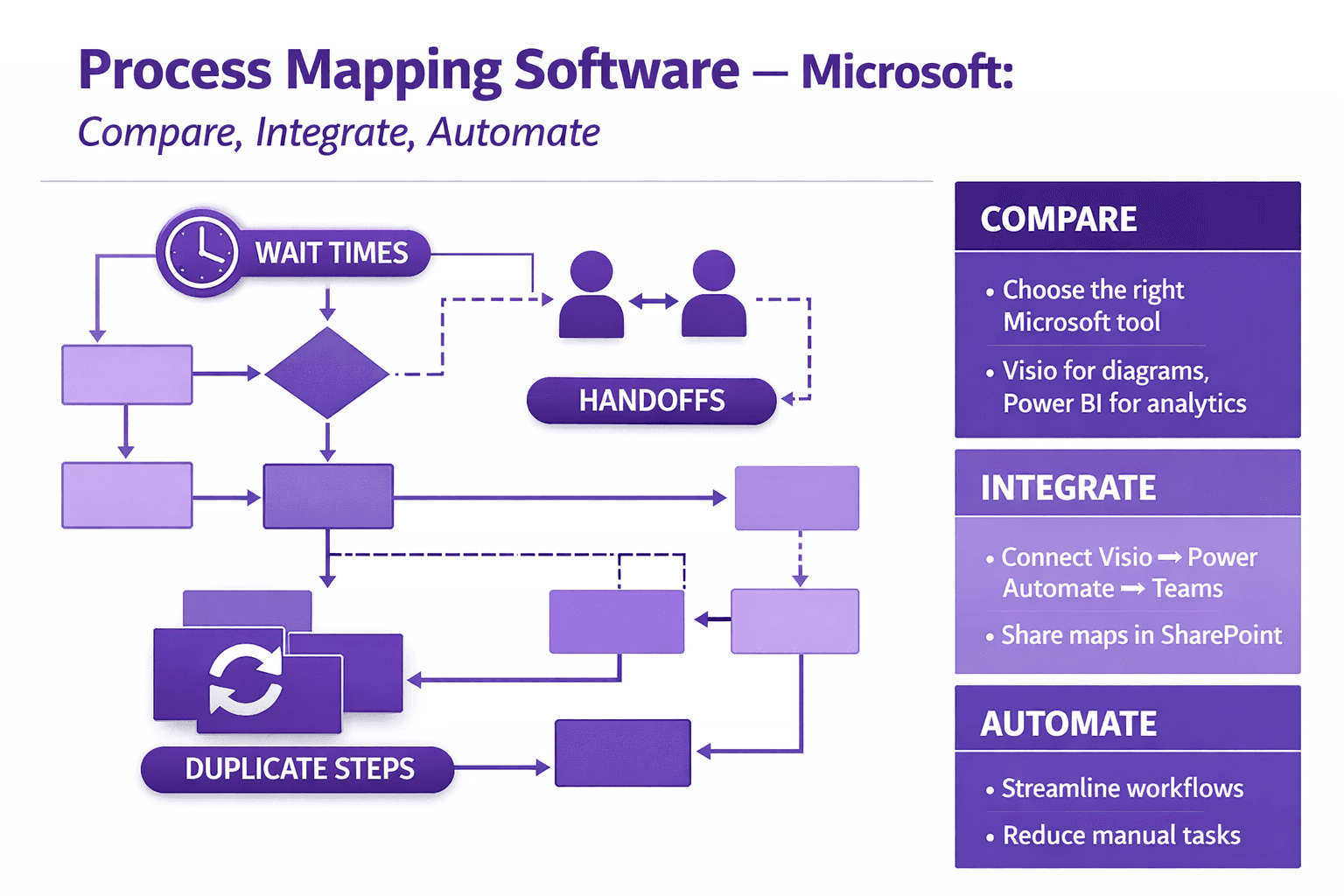
If you map processes for a living — analyst, consultant, operations manager — you already know maps are more than pretty boxes and arrows. A good process map exposes wait times, handoffs, duplicate steps and the low-hanging automation opportunities that actually save hours. Bad maps create false confidence and expensive rework.
When I say "process mapping software Microsoft," I mean the tools in and around the Microsoft ecosystem that people reach for when they want to document, analyze and automate processes: Visio, Power Automate (including Process Advisor), Power Apps, Power BI, Dynamics 365 and the connectors that tie them together. This guide is for you if you’re trying to choose tools, design an automation-ready process, or roll out a mapping + automation program inside Microsoft 365.
Here’s what you’ll get from this article:
- A clear look at Microsoft tools you can use for mapping, discovery, and automation.
- Feature checklist for choosing software that actually supports automation projects.
- A frank comparison with third-party tools like Celonis, Signavio and Lucidchart.
- A step-by-step implementation plan that moves you from current-state map to automated workflow tracked by KPIs.
- Practical templates, real examples and quick-win automation ideas you can start this week.
Now let’s get practical.
Microsoft tools for process mapping: Visio, Power Platform and more
Microsoft offers a stack that covers diagramming, discovery and action. You can run everything inside Microsoft — and that’s attractive if your org already uses Microsoft 365 and Azure AD. But there are trade-offs. I’ll walk through the main players.
Visio for diagramming: capabilities, templates, and collaboration
Visio is still the go-to diagramming tool inside Microsoft 365. You get:
- Classic flowcharts, BPMN-like shapes, cross-functional swimlanes, org charts.
- Templates for common processes: purchase-to-pay, onboarding, incident management.
- Shape data that stores metadata on a step (owner, SLA, system, estimated time).
- Collaboration via Visio for the web and co-authoring if files live in OneDrive or SharePoint.
- Data linking: Visio Professional/Plan 2 can link shapes to Excel, SQL or other data sources to visualize live status.
Practical tip: use shape data fields for automation readiness. Add fields like "SystemTrigger" and "Connector" and fill them as you map so later you can convert map steps into Power Automate actions without guessing.
Licensing quick (approximate, check current Microsoft pricing):
- Visio Plan 1: about $5/user/month — basic web editing and templates.
- Visio Plan 2: about $15/user/month — desktop app, data linking, advanced export options.
Power Automate Process Advisor and process mining basics
Process Advisor is Microsoft's lightweight process mining and task capture tool inside Power Automate. It's not Celonis-level deep, but it's useful and often underused.
How it works:
- You record activities or upload event logs.
- Process Advisor clusters common paths and highlights bottlenecks, repetitive clicks and time spent on steps.
- It suggests which parts are ripe for automation and can help generate a starting Power Automate flow.
A typical flow:
- Run a recording while doing the task for several people.
- Process Advisor aggregates recordings and visualizes the most common path.
- You use those insights to design a flow and estimate ROI.
Practical note: Process Advisor is great when you don’t have centralized event logs (like an ERP transaction table). For heavy-duty process mining on system logs you’ll want a specialist tool like Celonis or Signavio Process Intelligence, but Process Advisor is fast, costs less and integrates directly with Power Automate.
Power Apps, Power BI and Dynamics 365 integrations for end-to-end workflows
- Power Apps: Build lightweight apps to replace manual forms or collection points. Combine with Power Automate to trigger flows.
- Power BI: Display KPIs you care about — cycle time, backlog, SLA breaches — and embed reports in Teams or SharePoint.
- Dynamics 365: If you run CRM or ERP modules, you can anchor process automation to entities and business rules in Dynamics.
Example: HR onboarding
- Visio map documents handoffs: recruiter -> hiring manager -> IT -> facilities.
- Process Advisor shows recruiter tasks are repetitive (creating accounts).
- Power Automate handles account creation using connectors to Azure AD, SharePoint and Dynamics HR.
- Power BI dashboards show time-to-productivity and number of manual steps removed.
When to use built-in Microsoft tools versus add-ins or connectors
Use built-ins when:
- You’re already in Microsoft 365 and need fast wins.
- Your data lives in SharePoint, Outlook or Dynamics and you want simpler governance.
- You want single-sign-on and enterprise security via Azure AD.
Consider third-party tools when:
- You need advanced process mining on event logs across heterogeneous systems.
- Your diagrams require specialized notation support (some process-centric tools are stronger for BPMN 2.0).
- You need advanced task mining with desktop-level click and keystroke analysis at scale.
A hybrid approach often makes sense: use Visio + Power Platform for design and quick automation, add Celonis or Signavio if you need deep mining or process conformance analysis.
Key features to evaluate in process mapping software
Picking tools is partly preference. Mostly it’s about matching capabilities to outcomes. Here’s the checklist I use when reviewing options.
Diagramming and notation support (BPMN, flowcharts)
Look for:
- Real BPMN 2.0 support if you need executable models that tie to workflow engines.
- Easy-to-edit flowcharts and swimlanes for cross-functional processes.
- Metadata on shapes so steps carry information like SLA, owner, system connector.
Visio is strong on flowcharts and swimlanes and acceptable for BPMN-like diagrams. If you need strict BPMN-to-execution mapping, consider Signavio or Camunda.
Collaboration, versioning, and governance
Essential features:
- Co-authoring and commenting (Visio for the web has this).
- Version history stored in SharePoint for audits.
- Role-based access via Azure AD groups.
- Editing controls (restrict who can change shape metadata that feed automation templates).
Practical setup: keep Visio files in a SharePoint library that has a naming convention and required metadata columns (ProcessOwner, Criticality, LastReviewed).
Process discovery, mining, and analytics capabilities
Key differences matter:
- Task recording vs log-based mining. Process Advisor does task recording and light mining; Celonis focuses on log-based mining at scale.
- Clustering and path frequency visualization.
- Root-cause drill-down and variance analysis.
If you want to justify automation budget, pick a tool that quantifies time saved and highlights repetitive steps.
Automation readiness: export to flows, connectors, APIs
Ask:
- Can the diagram export metadata useful to a workflow tool (e.g., shape-to-action mapping)?
- Does the tool have built-in connectors to SaaS apps you use — Teams, SharePoint, SAP, Salesforce?
- Does it support API calls or run scripts for systems without native connectors?
Visio can store automation metadata; Process Advisor and Power Automate help translate common tasks into flows. But the translation is rarely perfect — expect manual tuning.
Sample mapping-to-automation metadata fields:
- ShapeId: onboarding-IT-account
- Trigger: When item created in SharePoint list
- Connector: Azure AD
- Action: Create user, Assign license
- Inputs: FirstName, LastName, Email
If your mapping tool can export that as JSON or Excel, you’re already half-way to automated flows.
Security, compliance, and admin controls in Microsoft environments
Because Microsoft hits enterprise requirements, expect:
- Azure AD SSO, RBAC, conditional access.
- Tenant controls for connectors and DLP policies.
- Environments in Power Platform for dev/test/prod isolation.
- Audit logs in Microsoft Purview / Compliance Center.
Practical governance: lock down premium connectors and desktop flows until you have an approval policy. Use environment-level policies to prevent runaway flows hitting costly third-party APIs.
Comparing Microsoft solutions with third-party process mapping tools
You’ll hear two arguments: stay in Microsoft for simplicity, or choose third-party for depth. Both can be true.
Cost and licensing considerations for Microsoft vs standalone tools
Microsoft pros:
- If you already have Microsoft 365 and Power Platform licenses, incremental cost is lower.
- Visio Plan 1 is inexpensive for basic work; Plan 2 adds features.
- Power Automate can be used under per-user plans (
$15/user/mo) or per-flow plans ($500 per month for 5 flows). Prices shift; check current licensing.
Third-party considerations:
- Celonis, Signavio and ARIS carry higher licence costs but include advanced mining, compliance, and collaboration features.
- Standalone diagram tools like Lucidchart or Miro charge per user (~$8–$20/user/mo) but won’t solve automation.
Decision rule: if the main value is automating tasks in Microsoft systems, staying in Microsoft is usually cheaper and faster. If you need deep process mining across many non-Microsoft systems, budget for a specialist vendor.
Integration advantages of staying in the Microsoft ecosystem
If your source systems are Outlook, Teams, SharePoint, Dynamics 365 or Azure AD, Microsoft tools integrate natively:
- Single sign-on and centralized identity.
- Pre-built connectors in Power Automate for Teams, Outlook, SharePoint, Dynamics.
- ALM and environment separation through Power Platform and Azure DevOps.
That reduces integration work and governance headaches.
Feature gaps and cases where third-party tools add value
Third-party tools win when:
- You need advanced process conformance, variant analysis, or root-cause analysis across SAP, Oracle, and custom databases.
- Your organization requires strict BPMN execution with model-driven orchestration.
- You want task-mining at desktop level at scale with deep behavioral analytics.
Example: a multinational with SAP ECC and many custom interfaces will likely get more insight from Celonis than from Process Advisor alone.
Migration and vendor lock-in risks
Stay realistic:
- If you put process metadata in Visio shape fields and then move to a third-party tool, migrations are possible but often manual.
- Using Power Automate connectors and proprietary actions creates some lock-in to Microsoft services.
- Consider exporting maps as standard formats (SVG, BPMN XML if supported) and keeping a canonical process repository (e.g., SharePoint or a dedicated process hub).
If you plan to switch tools later, design for portability from day one: use neutral metadata formats and keep the raw logs used for mining.
Step-by-step: Implementing process mapping with Microsoft software
Here’s a practical implementation path I’ve used with clients. It moves from discovery to automation and measurement.
1) Define scope and map the current-state process (templates and tips)
Start small. Pick one end-to-end process that:
- Is cross-functional but limited (4–6 people).
- Has measurable pain (manual effort, SLA breaches).
- Has executive support for automation.
Mapping steps:
- Use Visio flowchart or cross-functional swimlanes.
- Use consistent naming and include metadata fields: Owner, SLA (mins/hours/days), System, Trigger, DataInputs.
- Capture exceptions explicitly — they’re often where the work is.
Template suggestion (Visio):
- Swimlane template with lanes: Requestor, Approver, Systems Team, Finance.
- Standard shape data for each step.
- A legend for SLA colors: green <24 hours, yellow 1–3 days, red >3 days.
Practical tip: record a screen or meeting where someone walks through the process. Tools like Lyren AI can convert those recordings into step-by-step documentation and generate a draft diagram you can refine.
2) Use Process Advisor for discovery and gather telemetry
If you can capture recordings or event logs, do it. Process Advisor helps you find the common path.
Steps:
- Create a Process Advisor project in Power Automate.
- Ask 5–10 people to record the task using the Process Advisor recorder or upload event logs.
- Review the most frequent path and the variants. Identify which steps are repetitive and rule-based.
Output: a prioritized list of candidate automation actions and an estimate of time saved.
Practical note: combine Process Advisor results with Visio maps. Use Process Advisor to validate cycle times and to spot user behavior that differs from the documented process.
3) Translate maps into automated workflows with Power Automate
Now convert steps to flows.
Approach:
- Start with the trigger: When does automation start? Email received, SharePoint item created, Teams message, or scheduled batch?
- Break the flow into atomic actions that match Visio shapes.
- Use child flows and solutions to modularize reusable actions (create user, generate PDF, call API).
Example: converting a simple Visio approval path to Power Automate
- In Visio, ensure the approval step shape has metadata: Trigger=ManualApproval, Approver=Manager, Connector=Teams.
- In Power Automate, create a flow:
- Trigger: When an item is created in SharePoint (OnboardingRequests).
- Action: Post adaptive card to Teams for Approver.
- Condition: Approve -> Call Azure AD Create user; Reject -> Update item and notify.
- Use parallel branches for notifications and downstream tasks.
Tip: Use the Power Automate Test mode and run with a few real items before scaling.
4) Visualize KPIs in Power BI and iterate with stakeholders
Automation without measurement is wishful thinking.
KPIs to track:
- Average cycle time (hours/days).
- Manual steps removed.
- Number of exceptions/rework.
- Cost savings estimate (hours * fully-loaded hourly rate).
Connectors:
- Power Automate can write flow run data to a SharePoint list or Dataverse table.
- Power BI pulls that data and displays dashboards for stakeholders.
Practical dashboard layout:
- Top-left: Cycle time trend last 30 days.
- Top-right: Flow success vs failures.
- Bottom-left: Bottleneck heatmap by process step.
- Bottom-right: List of top 10 exceptions to resolve.
5) Rollout, training, and measuring ROI
Rollout checklist:
- Documentation: Visio map, SOP, and step-by-step guides (Lyren AI can auto-generate these from recordings).
- Training: 30–60 minute sessions for end-users and owners with sandbox flows.
- Support: a feedback channel in Teams and a triage owner for the first 30 days.
- Governance: change control for flows in production, and a schedule to review flows quarterly.
Measuring ROI:
- Track time saved * average hourly rate.
- Compare defects or SLA breaches pre/post automation.
- Include maintenance cost for flows (estimated hours/month).
A realistic expectation: a simple approval automation can pay for itself in 2–6 months if the volume is high enough and the manual step takes >5 minutes per request.
Practical examples, templates and automation patterns
Real-world examples help. Below are templates, a conversion example and connector patterns that work in the wild.
Sample Visio templates for common business processes
- Purchase Request
- Lanes: Requestor, Procurement, Finance
- Metadata: CostCenter, Amount, ApprovalRequired (Yes/No)
- Conditional paths: Amount > $10k -> Senior Approval
- Employee Onboarding
- Lanes: Hiring Manager, IT, Facilities, HR
- Metadata: StartDate, OfficeLocation, EquipmentNeeded
- Subprocess: Account creation (Azure AD) as a child flow.
- Invoice Processing
- Lanes: AP Clerk, Approver, GL
- Metadata: Vendor, InvoiceAmount, POReferenced
- Exception path: Missing PO -> Return to Requestor
You can create these in Visio and keep them in a SharePoint template library.
Example: converting a Visio map to a Power Automate flow
This is a simplified, practical conversion approach.
- Prepare Visio
- For each shape add shape data:
- Trigger: manual | created | scheduled
- ActionType: PostMessage | CreateUser | UpdateRecord
- Connector: Teams | AzureAD | SharePoint
- Inputs: comma-separated field names
- Export shape data
- Save the Visio file to SharePoint.
- Use the Visio "Shape Report" feature to export shape data to Excel. (Visio Plan 2 has this.)
- The exported Excel has one row per shape with the data fields.
- Build flow scaffold
- Use the Excel as a mapping document.
- Create a new Power Automate flow with the trigger from your first shape.
- For each subsequent shape row:
- Add the corresponding action with mapped inputs.
- Use conditions to represent decision shapes.
- Test and adjust
- Run the flow against a test SharePoint item.
- Tweak timeouts, concurrency controls and error handling.
This approach avoids brittle auto-converters and gives you control. Expect manual tuning.
Connector patterns for Teams, Outlook, SharePoint and Dynamics 365
Common patterns I use:
-
Teams approvals
- Trigger: SharePoint item created
- Action: Post adaptive card in Teams for approver
- Action: Update SharePoint with approval decision
-
Outlook email extraction
- Trigger: When an email arrives in a monitored mailbox (subject filter)
- Action: Parse email body with AI builder or regex
- Action: Create SharePoint item or start approval
-
SharePoint-based case management
- Trigger: New item in SharePoint list
- Action: Assign owner via Azure AD group lookup
- Action: Create a Planner task and send Teams notification
-
Dynamics 365 customer flow
- Trigger: Dynamics record status change (e.g., Opportunity -> Won)
- Action: Create project in Project for the Web or create contract in SharePoint
- Action: Notify finance and kick off provisioning flow
Quick wins: three automation ideas to start with
- Auto-acknowledge requests
- Use a Power Automate flow to send a templated email and create a tracking item in SharePoint when a request email hits a mailbox. Saves time and reduces duplicate follow-ups.
- Auto-provision AD account for approved hires
- When a SharePoint onboarding request is approved, trigger a flow that calls Azure AD to create account, assign license, and post the new account in Teams.
- Invoice flagging
- Use Outlook trigger + AI Builder form processing to extract invoice amounts and PO numbers, then route to AP if PO missing. Cuts manual data entry.
These are low-code and often use standard connectors.
Conclusion
Microsoft’s combination of Visio, Power Automate (Process Advisor), Power Apps and Power BI gives you a practical path from mapping to automating to measuring. If your data and users live largely inside Microsoft 365, that path is often the fastest and most cost-effective. For deep process mining or strict BPMN execution, third-party tools still matter.
Checklist for picking tools and planning implementation
- Scope: pick one process with clear pain and measurable volume.
- Diagramging: use Visio and capture shape metadata for automation readiness.
- Discovery: record tasks and use Process Advisor to quantify repetitive steps.
- Automation: map to Power Automate flows, modularize with child flows.
- Measurement: write run data to Dataverse or SharePoint and dashboard in Power BI.
- Governance: enforce environment separation, DLP rules and approvals for premium connectors.
- Documentation: use screen recordings + Lyren AI to auto-generate step-by-step SOPs and diagrams to speed training and audits.
- Cost check: confirm licensing for Visio Plan 2, Power Automate per-user or per-flow plans, and any third-party tool fees.
Next steps
- Pick a pilot process this week — something small, high-volume and cross-functional.
- Capture a couple of screen recordings and feed them to a recorder or Lyren AI to get initial step-by-step documentation and a draft diagram.
- Run Process Advisor sessions to validate time estimates and justify automation.
- Build a minimal Power Automate flow, measure results for 30 days, then iterate.
If you want templates I’ve used — Visio swimlane files, Process Advisor recording checklists, and a Power Automate starter flow — export them from your tenant or adapt the samples above to your environment. Start small, measure quickly, and keep documentation close to the process. You'll get more done, and people will stop saying “we tried automation and it failed” — because you'll know exactly why it will work.