Microsoft Software for Process Mapping: Top Tools & Best Practices
Introduction
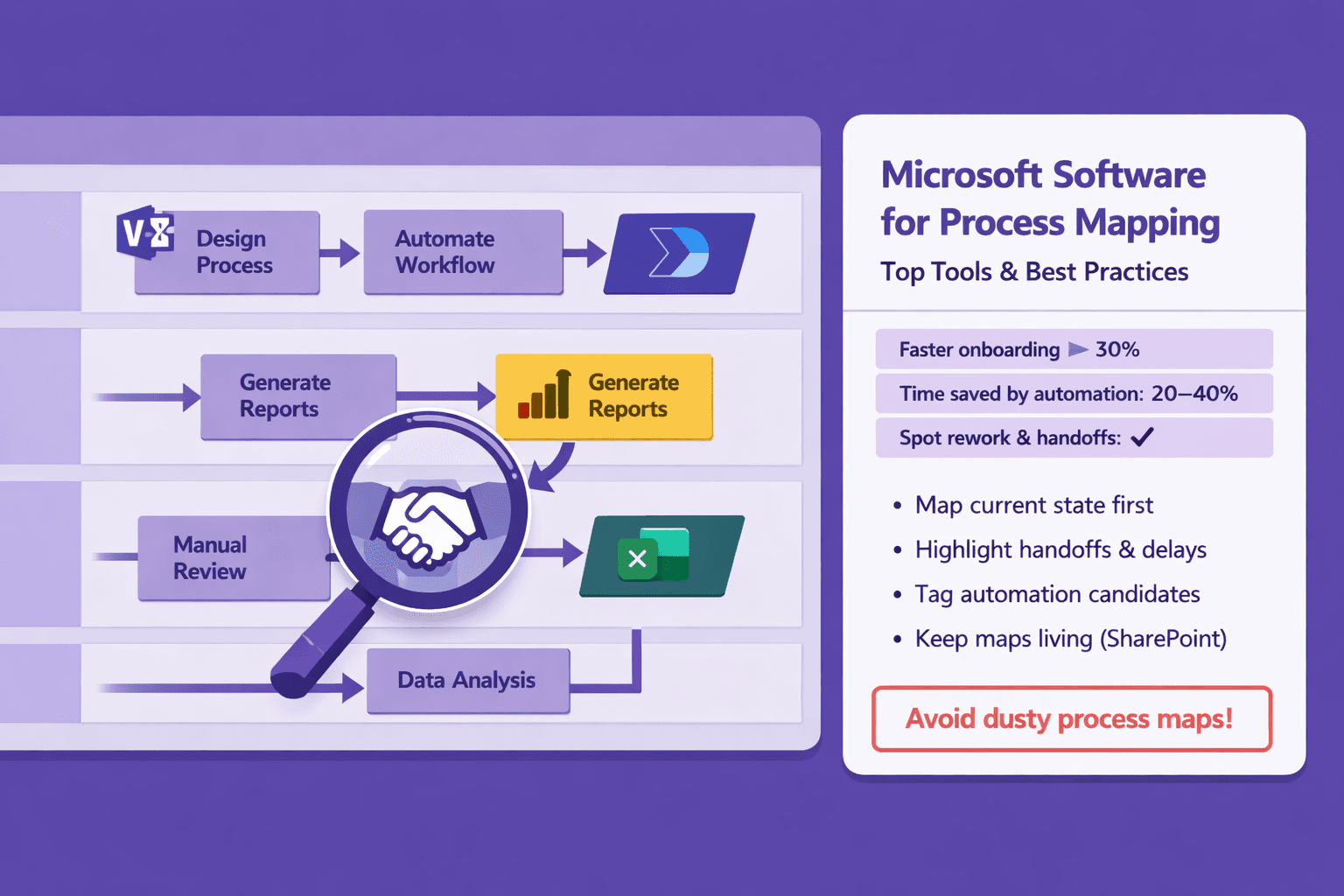
Process maps make messy work visible. For business analysts, consultants, and operations teams they're not just diagrams — they're the blueprint for faster onboarding, clearer SOPs, and automation that actually saves time. A good map lets you spot handoffs, needless rework, and quick wins for automation. A bad one becomes a dusty PDF nobody reads.
When people ask about microsoft software for process mapping they usually mean the set of Microsoft tools you use to capture, diagram, analyze, and automate business processes: Visio for diagrams, Power Automate for flows, Process Advisor for task mining, plus the Power Platform and Microsoft 365 services that glue everything together. If your team produces training videos, screen recordings, or SOPs, these tools (and platforms like Lyren AI) can speed up turning those recordings into structured documentation and flow diagrams.
Who benefits? Analysts mapping complex processes, automation engineers turning maps into flows, operations managers building living SOPs, and training teams who want consistent documentation tied to actual recorded steps. This article walks through the major Microsoft options, practical examples, templates, licensing realities, governance, and a step-by-step rollout plan you can copy.
Overview of Microsoft tools for process mapping
Here's a quick snapshot of the tooling most teams use when they say "microsoft software for process mapping."
- Visio — classic diagramming tool. Supports flowcharts, BPMN-like shapes, network diagrams, and business process modeling. Strong for formal diagrams and printable SOPs.
- Power Automate — flow engine for moving work between systems and people. Good for automating repetitive tasks discovered in process maps.
- Process Advisor (part of Power Automate) — task mining tool that captures user actions and produces process maps and bottleneck insights.
- Power Platform (Power Apps, Power BI, Dataverse) — lets you turn standardized process data into apps, reports, and a data model you can query.
- Microsoft 365 tools (SharePoint, Teams, OneDrive) — for storing process docs, collaborating on diagrams, and embedding flows and SOPs into team channels.
- Azure (optional) — for enterprise-level APIs, logging, and advanced automation and integration scenarios.
Primary use cases:
- Diagramming: Visio, with templates and shapes for process steps, decisions, and roles.
- Task mining and process discovery: Process Advisor captures the real user behavior and produces maps you can trust.
- Automation design and execution: Power Automate takes the repetitive parts of the map and turns them into flows.
- Operational documentation: Store living SOPs in SharePoint, embed diagrams and runbooks in Teams, and track changes via version control.
High-level comparison (very short):
- Visio = best for detailed, printable diagrams and BPMN-like work.
- Process Advisor = best for discovery from real user telemetry.
- Power Automate = best for actioning and automating mapped processes.
- Power Platform + Microsoft 365 = collaboration and data backbone.
If you're building a modern operations center, you'll often use a mix: Process Advisor to find the real steps, Visio to formalize them, and Power Automate to remove grunt work.
Microsoft Visio for process mapping
Visio still gets the job done when you need precise diagrams. It's the go-to if your stakeholders expect swimlanes, role-based flows, or exportable PDFs for audits.
Key Visio features
- Templates and shapes: Visio ships with flowchart, cross-functional flowchart (swimlane), BPMN-esque stencils, SIPOC, and value stream templates. Use them to standardize diagrams across teams.
- BPMN support: Visio doesn't enforce BPMN 2.0 as strictly as some dedicated BPMN tools, but it provides BPMN shapes and a reasonable workflow for modeling business processes.
- Shape data: Attach metadata to shapes — owner, SLA, system, linked document URLs, expected duration. That metadata is searchable and can be exported.
- Diagram validation: Visio Plan 2 has validation rules to check for issues (missing start/end, orphan shapes). That helps when you need process assurance.
- Export formats: VSDX (native), PDF, SVG, PNG. Exported SVGs look great on web pages and in internal wikis.
- Visio APIs and automation: There's a JavaScript API for embedding Visio diagrams in web apps and some automation via Office/Graph APIs. You can also script exports in PowerShell for batch operations.
Collaboration: web vs desktop, co-authoring, and version control
There are two main ways to use Visio now:
-
Visio for the web (lightweight editor)
- Ideal for quick edits, embedding in SharePoint/Teams, and basic co-authoring.
- Easier for non-Visio users to comment or view diagrams.
-
Visio desktop (full-featured)
- Required for advanced validation rules, complex shape libraries, and offline work.
- Better for large diagrams that need performance and advanced formatting.
Co-authoring works across web and desktop when the file lives in OneDrive or SharePoint. But caveats:
- Real-time co-authoring is best for small edits. Large multi-page diagrams can become sluggish when many people edit simultaneously.
- Keep a clear change process (see governance section). Use version history in SharePoint, and consider naming conventions like v1.0_psyg for process owner initials.
For serious version control and ALM, consider exporting milestones and metadata to a repo or saving diagram metadata in Dataverse so you can track lifecycle state (Draft, Review, Approved, Deprecated).
Pros, cons, and tips for large/complex diagrams
Pros:
- Precise control over visual layout.
- Metadata on shapes for richer documentation.
- Good export and print options for SOPs and audits.
Cons:
- Can get messy if teams export multiple versions without harmonized templates.
- Not built for live telemetry — it's a documentation tool first.
- Large diagrams (100+ shapes) are hard to digest on a single page.
Practical tips:
- Break large processes into modular diagrams. Use one "overview" Visio with links to detailed sub-process diagrams. That keeps each file manageable.
- Use swimlanes for role clarity and add shape metadata for system ownership and expected duration (e.g., "45s" or "2 business days").
- Create a shape library for your org's standard shapes (PO approval, exception handling, manual data entry) and a naming convention so shapes carry consistent metadata.
- For diagrams >50 nodes, switch to landscape A3 or export as SVG and embed in a responsive internal wiki where you can zoom rather than print.
- If you expect automation from a map, mark "automation candidates" using a consistent color or a shape property called "AutomationPriority" with values (1: immediate, 2: investigate, 3: no).
Real example: A mid-sized finance team split an invoice-to-pay diagram into three Visio files: Invoice Capture, Approval Routing, and Payment & Reconciliation. They used a single "master" Visio that linked to subfiles, and a Shape Data field "CurrentOwner" to drive a Power Automate that notifies owners when the documentation was updated.
Power Automate and Process Advisor: turning maps into automation
If Visio helps you describe a process, Process Advisor and Power Automate help you act on it. They let you move from "this is how people do work" to "this is how systems do work."
How Process Advisor captures task telemetry and produces process maps
Process Advisor collects run-time data either by:
- Manual session recording: users record UI actions (clicks, keystrokes, apps) for a task. Good for targeted processes like "enter new vendor into ERP" or "process credit memo."
- Desktop/organizational data: when permitted, Process Advisor can capture activity telemetry across users (subject to privacy rules).
You get:
- Visually clean process maps that show common paths and variants.
- Metrics: average time per step, frequency, and bottleneck points.
- Actionable insights like "20% of sessions deviate at Step 3" or "Step 5 averages 4 minutes due to manual copy/paste between systems."
Real-world example: A customer service team used Process Advisor to capture 120 recordings of "close case" handling. Process Advisor showed a consistent 3-step path for 70% of sessions, but a variant that added three manual copy-paste steps for 20% of sessions. That variant cost an extra 5 minutes per case. The automation team built a Power Automate flow that reduced the manual copy-paste work and cut average case close time by 40%.
Using Process Advisor outputs to design Power Automate flows
Process Advisor outputs give you an evidence-based backlog for automation:
- Identify high-frequency, high-duration manual steps (copy/paste, manual data entry, file saves).
- Prioritize by ROI: frequency x average time x salary cost.
- Prototype a flow in Power Automate. Common connectors: SharePoint, Outlook, Excel, SQL Server, Dynamics 365, and thousands of third-party connectors like Salesforce, Slack, or Zendesk.
- Test with pilot users, measure time saved, refine, and scale.
Example flow for an invoice approval:
- Trigger: new invoice file uploaded to SharePoint.
- Actions:
- Extract metadata (using AI Builder or Dataverse).
- Check amount thresholds and assign approver based on a SharePoint list or Dataverse table.
- Send adaptive card approval to Teams.
- On approve, update ERP via connector or call an Azure Function that posts to the vendor API.
- Log transaction in an approvals table for reporting in Power BI.
Code snippet: simple Power Automate expression to format date for an approvals email
formatDateTime(triggerBody()?['Created'],'yyyy-MM-dd HH:mm')
Examples of automation opportunities and business impact
- Accounts payable: Automate invoice routing and approval, reducing processing time from 72 hours to 14 hours for a typical mid-market org. Savings: fewer late fees, faster discounts — realistically a 30–60% time saving.
- HR onboarding: Auto-create accounts, licenses, and provisioning lists when the HR system sends a new hire entry — cuts manual onboarding steps from 18 to 4.
- Customer support: Auto-triage tickets in ServiceNow or Zendesk using Power Automate + AI Builder sentiment analysis — faster routing and a 10–20% first-response improvement.
- Data syncs: Eliminate daily manual Excel updates by using scheduled flows to push data to Power BI via Dataverse or Azure SQL.
Be conservative in claims: automate a small pilot, measure time saved per task, multiply by frequency to project ROI. In my experience, teams that pilot one flow deliver proof in 4–8 weeks.
Integration, data flow, and governance
Tools are only useful if data flows cleanly and securely. Here's how Visio, Process Advisor, and Power Automate fit with SharePoint, Teams, Dataverse, and third-party systems — plus governance notes.
Connecting Visio and Process Advisor to SharePoint, Teams, Dataverse, and connectors
- Visio files live naturally in SharePoint and OneDrive. Embed diagrams in Teams channels or SharePoint pages. Visio for the web lets you view/edit embedded diagrams directly in Teams.
- Process Advisor lives inside Power Automate. It stores process recordings and outputs in the Power Platform environment. You can export results to CSV or push insights into Dataverse or SharePoint for reporting.
- Power Automate has connectors for:
- Microsoft (SharePoint, Outlook, Teams, OneDrive, Dynamics).
- Enterprise systems (SAP, Oracle, Salesforce) via premium connectors.
- Custom APIs via HTTP connector or Azure API Management.
- Dataverse: Use it as the canonical data store for process metadata (process owner, SLAs, approval rules). Keeping process metadata in Dataverse makes reporting, role-based access, and reuse across apps easier.
- Power BI: Feed process telemetry for dashboards. For instance, have a "Process Health" dashboard showing average time per step and automation impact.
Practical tip: Keep process documentation (Visio files + SOPs) in a single SharePoint library with enforced metadata fields (ProcessName, Owner, Version, Status). Then build a Power Automate flow that, on status change to "Approved", copies the Visio to an archive folder and notifies the process owner and stakeholders.
Export/import options, APIs, and maintaining living process documentation
- Export from Visio as VSDX, SVG, PDF. If you want machine-readable metadata, export shape data to Excel or use automation to extract shape metadata via Visio APIs or scripted exports.
- Process Advisor exports: CSV summaries of metrics and raw session data. Use these to feed Dataverse or Power BI.
- APIs: Use Microsoft Graph for file handling, SharePoint REST API for library automation, and Power Platform Admin connectors for environment management. If you need custom integrations, create Azure Functions that call external APIs and connect them to Power Automate via HTTP.
- Maintaining living docs:
- Adopt a lifecycle model: Draft → Review → Approved → Deprecated.
- Use versioning in SharePoint and require a review every X months (e.g., 12 months) or after any process automation change.
- Link Visio shape metadata to an SOP page. When the SOP changes, update shape data so diagrams stay in sync.
Governance, security, and compliance considerations
This is where many rollouts fail. Good governance keeps automation safe and predictable.
Key controls:
- Environment strategy: separate environments for Development, Test, and Production. Use Power Platform environments and restrict flow creation in Production.
- Data Loss Prevention (DLP) policies: restrict which connectors can be combined (e.g., block combining corporate data connectors with personal connectors like Gmail).
- Role-based access: use Azure AD groups and Dataverse security roles. Only allow process owners and approved automation engineers to publish flows.
- Approval gates: require an operational sign-off for flows that write to core systems (ERP, HRIS).
- Audit & logging: enable run history in Power Automate, export logs to Azure Log Analytics for long-term retention, and keep a change log in SharePoint or Dataverse.
- Privacy and compliance: get legal and privacy involved when recording user sessions with Process Advisor. Mask or exclude sensitive screens before sharing recordings. Make sure recordings comply with GDPR or local regulations.
Real example: A healthcare client set DLP rules to block connector combos that could export PHI to external services. They set a mandatory approval workflow for any Power Automate flow that touches the EMR system. That prevented accidental leaks and saved them from a costly remediation.
How to choose the right Microsoft tool for your needs
Picking the right tool depends on scale, complexity, automation goals, and who will maintain the work.
Evaluation checklist
Use this quick checklist to evaluate your needs:
- Scale
- Small team (<10 users), occasional mapping: Visio for the web + SharePoint may be enough.
- Enterprise (1000+ users), multiple processes: Full Power Platform with Dataverse and a governance model.
- Complexity
- Simple sequential processes: Visio and basic Power Automate flows.
- Processes with many exceptions, integrations, or human approvals: Power Automate + Process Advisor for discovery and Dataverse for state.
- Automation goals
- Low/no automation: focus on Visio + SOPs in SharePoint.
- Replace manual data entry: Power Automate flows that act on the highest-frequency steps.
- Collaboration needs
- Remote, distributed teams: use Teams + SharePoint + Visio for the web for co-authoring.
- Cross-department sign-offs: build approval flows in Power Automate with adaptive cards in Teams.
- Budget
- Need to be frugal? Start with Visio Plan 1 and Power Automate per user trials. For wider automation, budget for Power Automate per flow or per user licenses and Plan 2 for Visio if you need validation and advanced features.
Decision matrix examples
Analyst-focused vs Automation-focused:
-
Business analyst (single team)
- Primary need: diagram clarity, documentation, stakeholder reviews
- Tools: Visio (desktop for advanced), SharePoint for library, Teams for collaboration
- License needs: Visio Plan 1 or Plan 2, Microsoft 365
-
Automation team (RPA + integrations)
- Primary need: evidence-based discovery, flow creation, governance
- Tools: Process Advisor, Power Automate (per user/per flow), Dataverse, Power BI
- License needs: Power Automate per user/flow, premium connectors, environment capacities
Sample decision matrix (simple):
- If you need advanced BPMN validation and enterprise diagram library → Visio Plan 2.
- If you want to record user sessions and find automation candidates → Process Advisor.
- If you want to execute cross-system automations at scale → Power Automate with Dataverse and proper governance.
Licensing considerations and cost optimization tips
Licensing changes often — always check Microsoft docs before budgeting. Quick pointers that hold up:
- Visio: Plan 1 is lighter and cheaper (web-based editing). Plan 2 includes desktop Visio and advanced features like validation.
- Power Automate: Licensing can be per-user or per-flow. Per-flow licensing is cost-efficient for team-based automated processes that many people will trigger.
- Process Advisor: may require Power Automate licenses or specific add-ons for larger scale task mining.
Cost optimization tips:
- Start with a pilot to prove value before buying enterprise-wide licenses.
- Use per-flow licensing when you have a handful of high-use automations rather than per-user for hundreds of occasional users.
- Leverage Microsoft 365 capabilities (SharePoint, Teams) you already have to store documentation and run approvals.
- Archive old flows and Visio files to avoid paying for retained storage or unused environments.
- Use Dataverse only when you need relational data and reusability; simple SharePoint lists work well for smaller implementations.
Implementation best practices, templates, and common pitfalls
Here’s a practical implementation playbook you can reuse.
Step-by-step rollout plan
-
Pilot (4–8 weeks)
- Pick 1–3 processes with measurable KPIs (e.g., invoice approvals, onboarding).
- Record sessions using Process Advisor and map with Visio or Lyren AI.
- Prototype 1-2 flows in Power Automate.
- Measure baseline metrics and post-automation metrics.
-
Define standards and templates (weeks 2–6 during pilot)
- Create a Visio template with your organization's swimlane, color palette, and metadata fields (Owner, SLA, AutomationPriority).
- Create SOP template in SharePoint with required sections: Purpose, Scope, Steps, Exceptions, Related Docs, Last Reviewed.
- Set naming conventions for files and flows.
-
Build governance (weeks 4–12)
- Create Power Platform environment strategy and set DLP rules.
- Define roles: Process Owner, Automation Engineer, Reviewer.
- Put in place an approvals process for flows that touch critical systems.
-
Scale (months 3–12)
- Establish a Center of Excellence (CoE) or designate an automation hub.
- Train process owners and power users (short lunch-and-learn sessions work).
- Create a reusable library of connectors, components, and flow templates.
-
Continuous improvement
- Schedule quarterly reviews for process maps.
- Add automated tests for critical flows (simulate inputs and verify output).
- Use telemetry from Process Advisor to find drift and new automation opportunities.
Template examples and reusable components
Templates you'll want:
- Visio Process Template:
- Cover page with ProcessName, Owner, Scope
- Swimlanes by role/system
- Shape data fields: StepID, CurrentOwner, SLA, AutomationPriority, SystemLink
- SOP Template (SharePoint page):
- Step-by-step instructions with screenshots and links to short screen-recorded clips (use Lyren AI to auto-extract steps).
- Troubleshooting section with top 5 exceptions and workarounds.
- Contact list and escalation path.
- Power Automate flow template:
- Trigger: SharePoint file created
- Action: read metadata, call Dataverse to get routing rules, send Teams approval adaptive card, update status list
- Dataverse process metadata table:
- Fields: ProcessID, ProcessName, Owner, LastReviewed, AutomationStatus, RiskLevel
Reusable components:
- Approval adaptive card templates for Teams.
- Pre-built parsing modules (AI Builder) for receipts/invoices.
- Logging wrapper for flows that push run data to an audit table.
Lyren AI mention: If your team creates lots of screen recordings and training videos, use Lyren AI to convert those recordings into structured step-by-step documentation and process diagrams automatically. That can cut documentation time from days to hours and gives you the diagrams you can import into Visio or link from SharePoint.
Common mistakes and how to avoid them
- Over-detailing the map:
- Problem: maps get unreadable and maintenance-heavy.
- Fix: keep diagrams at the right level. Use a high-level overview and link to detailed SOPs. Only put steps on a process map that matter to decision points, handoffs, or SLAs.
- Poor governance:
- Problem: random flows created by users cause security holes and duplicate work.
- Fix: set DLP rules, environment strategy, and a lightweight approval process. Educate power users.
- Missing metrics:
- Problem: you can't prove ROI.
- Fix: capture baseline metrics before making changes. Process Advisor can help with time per step; for manual actions, do time studies on a sample of users.
- Siloed storage:
- Problem: diagrams live across drives, old versions persist.
- Fix: centralize in SharePoint with enforced metadata and retention policies.
- Ignoring privacy when recording:
- Problem: recordings contain PII or sensitive screens.
- Fix: anonymize recordings, mask sensitive fields, get legal sign-offs before wide use.
Conclusion
Microsoft software for process mapping — the mix of Visio, Process Advisor, Power Automate, and the Power Platform — gives you everything from discovery to action. Use Process Advisor to see how people actually work, Visio to make diagrams clear and auditable, and Power Automate to remove the repetitive parts. Add Dataverse and Power BI for a data backbone and reporting, and protect it all with proper governance.
Action checklist (copy this into your project playbook):
- Pick 1–3 pilot processes with measurable KPIs.
- Capture baseline data (Process Advisor recordings or time studies).
- Create a Visio template (swimlanes + shape metadata).
- Prototype one Power Automate flow and measure results in 4–8 weeks.
- Store diagrams and SOPs in SharePoint with enforced metadata and versioning.
- Put DLP and environment strategy in place before scaling.
- Use Lyren AI or similar to convert screen recordings into structured SOPs and flow diagrams to speed documentation.
Trial recommendations:
- Get Visio Plan 1 or Plan 2 trial for diagram capability testing.
- Use Power Automate and Process Advisor trial to capture recordings and run a few flows.
- Try Lyren AI's 7-day free trial to see how automated documentation and diagram generation accelerates your rollout.
If you follow a measured rollout — pilot, standards, governance, scale — you'll get cleaner documentation, faster onboarding, and realistic automation wins that prove ROI. Start small, measure, then expand. And when you hit the second or third automation, you'll wish you'd started sooner.