Microsoft Process Mapping Software: Use Cases, Features & Tips
Introduction
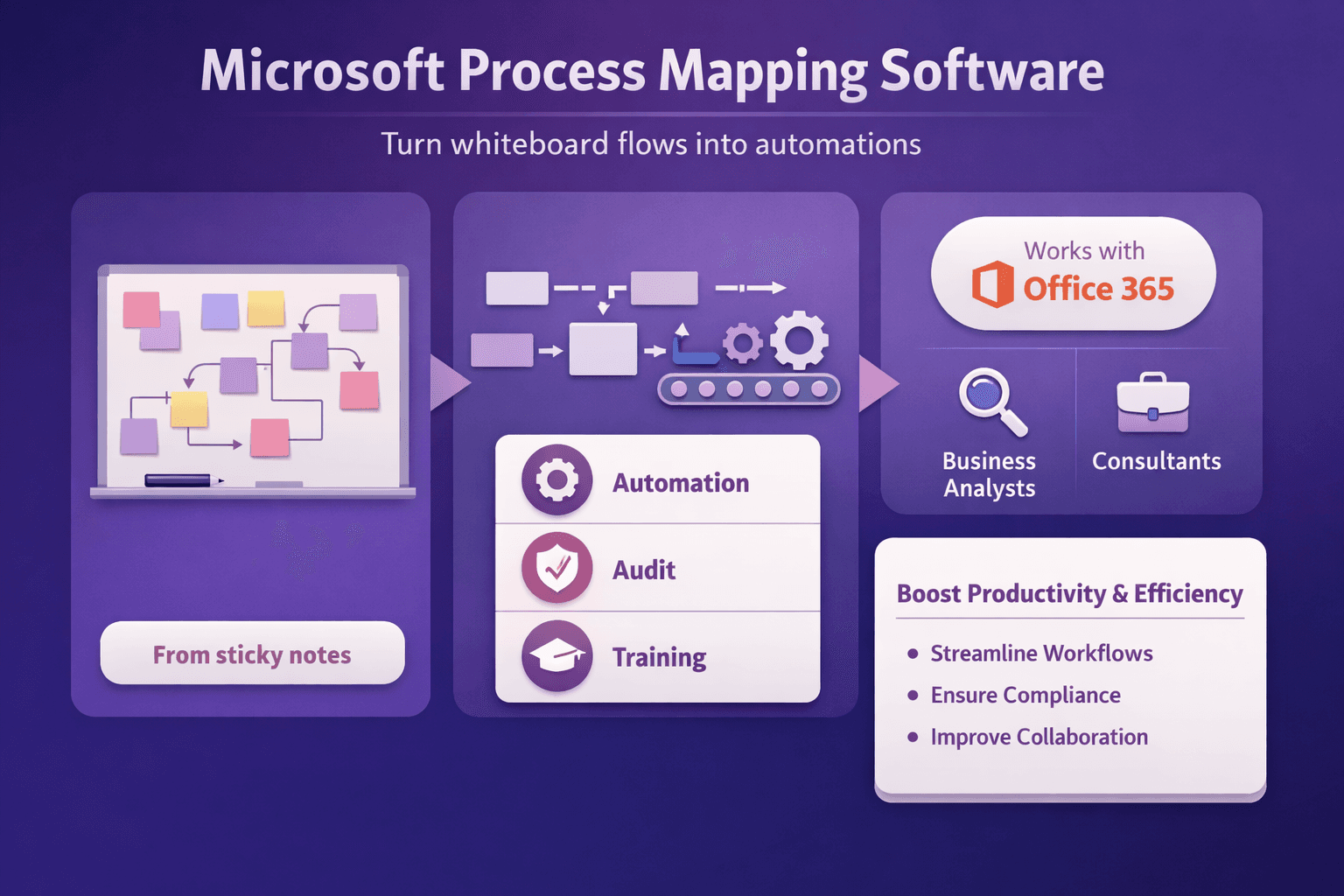
If you've ever tried to turn sticky-note process maps into actual automation, you know how messy that handoff can get. Microsoft process mapping software gives you a practical path from a whiteboard flow to automated work—especially if your org already lives in Office 365. You're not just drawing boxes; you're creating artifacts that can feed automation, audits, and training.
Who this guide is for
- Business analysts who need diagrams that actually drive change
- Consultants who must hand off process specs to clients or dev teams
- Tech and operations managers responsible for process governance or RPA programs
What you'll learn
- Which Microsoft tools do which parts of the job (Visio, Process Advisor, Power Platform, SharePoint, Teams)
- When Microsoft is a clean fit and when you need a specialist BPM or RPA product
- A practical step-by-step: map in Visio, mine with Process Advisor, build flows in Power Automate, publish in Teams/SharePoint
- Governance, security, and measurable ROI tactics you can use right away
This isn’t abstract. Expect concrete tips, naming conventions, and examples like customer onboarding and procure-to-pay—stuff you can apply in the next sprint.
Overview of Microsoft Process Mapping Tools
Microsoft has more than one way to draw a process. Here’s the quick map of the main pieces and what they do.
Key Microsoft options
- Visio: classic diagramming tool. Supports formal BPMN diagrams (with Visio Plan 2) and simpler flowcharts (Plan 1 also works for basic diagrams). Good for formal specs and stakeholder-friendly visuals.
- Process Advisor (Power Automate): task-recording and analysis tool that captures user clicks and times and highlights bottlenecks and candidate steps for automation. Think of it as lightweight task mining.
- Power Platform components (Power Automate, Power Apps, Power BI): where mapped processes become automated or turned into dashboards and apps. Power Automate Desktop is the RPA agent for UI automation.
- SharePoint + Teams: collaboration, version control, and review. Store a canonical Visio file in SharePoint; discuss and approve in Teams channels.
Core capabilities
- Diagramming: Visio handles BPMN and flowcharts, with stencils and swimlanes.
- Data-linked diagrams: Visio can link shapes to Excel, SQL, or SharePoint lists so diagrams reflect real data (like process owner, SLA target, last reviewed date).
- Discovery and task mining: Process Advisor records steps, shows durations, and groups similar recordings. It surfaces automation targets.
- Export/hand-off: Visio can export to SVG/PDF and share links; Process Advisor can output recommended flows which can be rebuilt or used to seed Power Automate flows.
Licensing and editions overview
- Visio Plan 1: web-based editing, good for simple diagrams and viewers.
- Visio Plan 2: desktop app + full BPMN support + data-linked diagrams. This is the one to get if you’re serious about BPMN and advanced shapes.
- Power Automate licensing: per user plan (~$15–$40/user/month depending on plan and region) or per flow plan. Power Automate Desktop (PAD) is included with Windows 10/11 for attended automation, but enterprise-scale RPA with unattended bots often needs additional licensing or attended/unattended capacity add-ons.
- Process Advisor: included with certain Power Automate licenses; check your tenant. Small teams can often start with trial or included plans but expect to scale into paid licensing for production use.
If budgeting, remember: Visio Plan 2 plus a Power Automate per-user plan gives you mapping + basic automation handoff. For enterprise RPA, expect additional PAD capacity and governance tooling.
When to Use Microsoft Tools vs. Dedicated Process Mapping Software
Microsoft is convenient. But it’s not a cure-all. Here’s when it shines and where it might fall short.
Where Microsoft is ideal
- Tight Office 365 integration: If your teams already use Teams, SharePoint, Outlook, and Excel, Microsoft tools reduce friction—sharing files, assigning tasks, and using Azure AD for access control.
- Lightweight mapping and rapid handoff: Want a flowchart, an audit trail, and a Power Automate prototype in a few days? Microsoft does that fast.
- Direct automation handoff: Process Advisor to Power Automate is a short path from recorded user steps to automation candidates.
Limitations compared with specialist tools
- Advanced simulation and large-scale BPMN orchestration: Tools like Camunda, Signavio (SAP Signavio), or IBM BPM offer mature BPMN engines, advanced process simulation, and process instance management that handle enterprise process orchestration at scale.
- High-fidelity task mining at scale: UiPath Process Mining or Celonis do heavy-duty process discovery on system logs across multiple enterprise systems, often with deeper conformance checking and process variant analysis.
- Vendor-neutral governance and process repositories: Some organizations prefer vendor-neutral process repositories for long-term change management—Microsoft locks you into M365 storage and formats unless you export.
Decision checklist: choose Microsoft if...
- You need quick wins and your systems live in M365.
- Teams require collaborative review and version control inside SharePoint/Teams.
- The process scope is departmental to cross-functional but not an enterprise orchestration spine.
Consider a specialist if...
- You need an engine to run and monitor millions of process instances.
- You require deep conformance analysis across ERPs, CRMs, and legacy systems.
- Your organization already licenses a full BPM suite and needs vendor-level governance.
Pro tip: Many organizations run a hybrid—use Visio + Process Advisor for discovery and prototyping, then migrate validated process models into Signavio or Camunda for enterprise orchestration.
Step-by-Step: Map a Process Using Microsoft Tools
I like showing a full path: document, analyze, automate, and publish. Below is a practical workflow that turns a sticky-note process into something demonstrable and actionable.
- Start in Visio: capture scope, swimlanes, and symbols
- Scope first. Spend 30 minutes with the process owner and agree the start/end triggers. Example: Customer onboarding starts with "signed order received" and ends with "account active."
- Choose diagram type: use BPMN when you need formal handoff to dev teams or external auditors; use a flowchart for stakeholder-friendly visuals. My rule: if you plan to automate and care about events/gateways, pick BPMN in Visio Plan 2. If you just need clarity, a flowchart is faster.
- Use swimlanes for clear responsibilities. Example lanes: Sales, Finance, IT, Customer Success. This reduces questions later about "who approves."
- Keep symbols consistent. Create a Visio stencil with your organization's approved shapes and colors. That prevents eight different ways of drawing "approval" across teams.
Practical Visio tips
- Link shapes to metadata: add custom properties like owner, SLA hours, last reviewed, and known automation candidate (yes/no). That helps reporting.
- Use Pages for variants: one page for the high-level process, one for the detailed subprocess. That keeps diagrams readable.
- Version control: save the working Visio in a SharePoint document library with check-out required. That avoids accidental overwrites.
- Discover with Process Advisor: record tasks and analyze bottlenecks
- Run a small recording session: invite 3–5 people who do the work every day to record a common case in Process Advisor. Have them record with the browser or the Process Advisor desktop recorder. Collect data for at least 20 recordings to get meaningful variance.
- Analyze the outputs: Process Advisor groups similar paths and highlights where time is spent. It might show that 40% of time is spent waiting for finance approval or manual data copy between systems.
- Use the recommended flows as a hypothesis: Process Advisor will propose what steps are ripe for automation. Treat this as input, not final design.
- Link diagrams to Power Automate/Power Apps: create automated workflows and handoffs
- Seed a Power Automate flow: Use the Process Advisor insights to build a prototype flow. Start with a small, low-risk automation—send an automated notification when an order is approved, or auto-populate a SharePoint list from an incoming email.
- For UI-heavy tasks, use Power Automate Desktop: If Process Advisor shows the most time is spent copying data from a web portal to Excel, PAD can automate the clicks. Make sure credentials are supplied via Azure Key Vault and run under a managed service account for unattended flows.
- If you need a user-facing form, build a Power Apps form and call Power Automate flows from it. Example: a "New Client Setup" Power App can collect fields and call a flow that talks to the ERP.
Sample small flow (high-level)
- Trigger: Form completed in Power Apps or SharePoint list item created
- Actions: Validate data → Call API to create customer → Send Teams message to Sales → Update Visio metadata (via linked data source)
- Error handling: Add retries and send failure alerts to an owners channel in Teams.
- Collaborate and publish via Teams/SharePoint
- Publish the canonical Visio file to a SharePoint library called “Process Repository.” Use content types and metadata—process name, owner, criticality, and review date—so you can filter and report.
- Use Teams for stakeholder review: Post the Visio link in a channel, pin to the channel's Files tab, and run a short review meeting using the Teams Share feature. Capture comments directly in Visio Online comments so the file retains context.
- Automated governance: set a retention label (e.g., review annually) and an approval flow that locks edits until an assigned owner reviews changes.
Short checklist for the sprint
- Scope agreed and owner identified
- Visio draft with swimlanes created and linked to metadata
- 20+ Process Advisor recordings collected and analyzed
- One Power Automate prototype flow built and tested
- Visio published to SharePoint, review scheduled in Teams
If you want to speed discovery, Lyren AI can process screen recordings and auto-generate step-by-step documentation and flow diagrams. It’s handy if you’ve got long training videos or tons of user session recordings to compress into process artifacts.
Integrating Mapping With Automation and RPA
Mapping without automation is documentation. Automation without mapping is risky. Here’s how to bridge them cleanly.
How Process Advisor feeds into Power Automate and Power Automate Desktop
- Process Advisor captures timing and step sequences. Use it to prioritize automation targets: high frequency * high manual time = high-impact.
- Map the exact recorded steps to flow actions. For back-end tasks you can call APIs; for front-end tasks replicate the clicks with PAD.
- Create a backlog of automation requirements from Process Advisor outputs: include acceptance criteria, success thresholds, and failure modes.
Best practices for turning map artifacts into executable automation requirements
- Write acceptance criteria like a test case. Example: “Given a signed order is stored in SharePoint, when the flow runs, then customer record must be created in ERP with matching order ID and a confirmation email sent within 2 minutes.”
- Break automation into atomic components. Don't try to automate the whole procure-to-pay in one flow—start with invoice capture or supplier onboarding. Smaller automations reduce blast radius.
- Add observability hooks. Each automated step should log start/end timestamps and error metadata to a central log (Power Platform Analytics, Application Insights, or a custom Power BI dashboard). That makes the map verifiable.
Monitoring and iterating
- Use Power Platform admin center to view flow runs and failures. Create a Power BI dashboard that shows run counts, success rate, and average duration per flow.
- Close the loop: use telemetry to update your Visio metadata (last tested, average duration, error rate). That keeps the process map current and useful for audits.
- Set a cadence: every 90 days review the top 10 failed runs and update the map or flow accordingly.
Operational detail: secrets and credentials
- Never embed credentials in PAD scripts. Use Azure Key Vault or the Power Platform's built-in credentials store for connectors. For unattended bots, use a managed service account tied to a lifecycle policy and monitor it via Conditional Access.
Best Practices, Governance, and Security
You can create great process maps, but without governance they rot. Here’s a practical governance plan that’s light enough to adopt but serious enough to scale.
Standards for maps and metadata
- Naming convention: [ProcessArea][ProcessName][Version] — e.g., FIN_ProcureToPay_v1.2. Keep it predictable.
- Standard symbols and colors: publish a Visio stencil and require it in the process library. Use red for blockers/critical steps, green for automated steps, and blue for manual tasks—consistent color semantics prevent confusion.
- Mandatory metadata: owner, SLA hours, last reviewed date, automation candidate (Y/N), risk classification. Store these as SharePoint columns.
Governance: access controls and approval flows
- Use Azure AD groups for access control to the process repository. Don’t give everyone edit access.
- Put an approval flow on changes to production process maps. When a draft is saved, route it to the process owner for sign-off before publishing.
- Retention and records: apply retention labels for regulatory needs. For example, financial process maps might need a seven-year retention policy.
Security considerations
- Sensitive data in diagrams: diagrams often contain example IDs or PII. Treat Visio files like documents; apply sensitivity labels (Confidential, Internal, Public). Use DLP policies in Microsoft 365 to prevent accidental sharing.
- External systems: when mapping processes that touch external vendors or portals, document the trust boundaries and encryption methods. For RPA, ensure bots use managed credentials and that audit trails record who executed which flow and when.
- Audit and compliance: enable auditing logs in Microsoft 365 and Power Platform. For high-compliance environments, consider adding Application Insights to custom connectors and storing logs in a SIEM like Azure Sentinel.
Opinionated tip: don’t map everything. Some processes are high-cost to document and low-impact. Start with the high-frequency, high-variance tasks that cause rework.
Real-World Use Cases and ROI Examples
Numbers get attention. Here are typical use cases, metrics, and short examples that show where Microsoft process mapping software pays off.
Common use cases
- Customer onboarding: reduce setup time and errors by standardizing steps and automating data entry from forms to CRM and billing.
- Procure-to-pay: visible approvals, automated invoice capture, and rule-based PO matching reduce late payments and exceptions.
- HR onboarding: automated account provisioning, equipment requests, and welcome emails cut manual steps for IT and HR.
- Claims processing: triage, validation, and auto-routing of straightforward claims reduce backlog and improve SLAs.
Quantifying ROI: simple math
- Example: an invoice processor spends 1 hour per invoice on manual entry. You automate steps that cut that to 15 minutes. If the employee costs $30/hour and handles 1,000 invoices/month, monthly savings = (0.75 hours * $30 * 1,000) = $22,500. Subtract licensing ($1k–$5k/month depending on scale) and development costs, and you're often looking at a 3–6 month payback on a well-targeted automation.
- Example: customer onboarding time drops from 48 hours to 8 hours because approvals are automated and notifications are instant. That reduces churn risk and speeds revenue recognition.
Short case study (hypothetical but realistic)
- Before: A mid-sized SaaS company had a 7-step manual client onboarding process involving Sales, Legal, Finance, and IT. Average time: 5 days. Error rate: 12% (missing fields or mismatches).
- Action: Mapped in Visio, recorded 30 Process Advisor sessions, automated two steps using Power Automate (create client record; send IT provisioning request). PAD automated a portal copy for legacy systems.
- After: Time to onboard dropped to 1.5 days. Error rate dropped to 2%. Estimated annual savings: $120k in labor + faster billable start dates. Payback: under 6 months.
Real tool comparisons
- If you need deep process mining across ERPs, consider Celonis or UiPath Process Mining. If you want integrated capture from screen recordings and auto-generated step-by-step documentation, Lyren AI makes that part faster by converting UI videos into structured docs and flow diagrams that plug into Visio and Process Advisor outputs.
Implementation Checklist and Next Steps
Ready to run a pilot? Here's a checklist that’s blunt and practical.
Practical checklist
- Stakeholders: identify process owner, sponsor (VP-level), IT lead, security lead, and the delivery analyst.
- Tools & licenses: Visio Plan 2 for diagramming, Power Automate per-user or per-flow depending on scope, Power Automate Desktop access for RPA. Confirm Process Advisor availability in your tenant.
- Pilot process selection: pick a high-frequency, cross-functional process with a clear owner (customer onboarding, invoice capture, HR onboarding). Avoid vague or political processes as your first pilot.
- Success metrics: define clear metrics—time-to-complete, error rate, cost-per-transaction, and user satisfaction score. Aim for a 30–50% time reduction target for the first pilot.
- Data and recordings: collect 20–50 Process Advisor recordings or screen recordings that Lyren AI can process into step lists if you have long videos.
- Security and governance: set retention labels, sensitivity labels, and an approval flow for publishing. Ensure secrets management is in place for automation.
Training and change management tips
- Teach by doing. Run a 2-hour workshop where analysts build a Visio draft and create a simple Power Automate flow together. Real experience beats slides.
- Create a playbook: one-pager describing the mapping-to-automation pipeline, naming conventions, and who to contact for governance approvals.
- Celebrate and communicate wins: publish before/after metrics in Teams and ask the process owner to share a quick testimonial. That helps scale adoption.
Resources and templates
- Visio shapes: create a company Visio stencil with approved colors and symbols; store it in SharePoint.
- Process Advisor reports: export the top 10 bottlenecks and save as a CSV. Use this as the backlog for automation.
- Power Automate starter flows: keep a library of starter connectors and common flows (send Teams message, update SharePoint item, call REST API). These speed development.
- Lyren AI templates: if you use Lyren AI, process recorded sessions with the tool to auto-generate step-by-step documentation and a starting flow diagram you can paste into Visio.
Quick naming convention example
- Process ID: FIN-P2P-001
- Display name in Visio: Procure-to-Pay (FIN-P2P-001)
- Metadata fields: Owner: Finance Ops | Criticality: High | ReviewDate: 2026-04-01 | AutomationCandidate: Yes
Conclusion
Microsoft process mapping software—Visio, Process Advisor, Power Platform, SharePoint, and Teams—gives you a practical toolchain to move from diagrams to automation without heavyweight procurement cycles. It’s not perfect for every enterprise scenario, but when your data and users live in Microsoft 365, the velocity you get is real.
Practical final recommendations
- Start small: pick one high-impact pilot process and measure baseline metrics before you map.
- Use the right diagram type: BPMN in Visio Plan 2 for formal handoffs; simple flowcharts for stakeholder alignment.
- Make mapping actionable: link Visio metadata to Power Automate work and keep telemetry flowing back into your process repository.
- Govern early: set naming standards, access controls, and retention rules before you scale.
- Use tooling wisely: bring in Process Advisor for task mining, Power Automate/PAD for RPA, and consider Lyren AI if you have many screen recordings or want AI-assisted step documentation.
You’ll get the best results when process mapping is more than pretty diagrams—when it feeds automation, training materials, and auditable documentation. Start with a clear scope, capture reality with recordings, and aim for small automations that deliver quick wins. That’s how you build trust, budget, and momentum to map and automate the next wave of processes.