Best Free Knowledge Base Software for Teams: Top Tools, Pros & Tips
Introduction
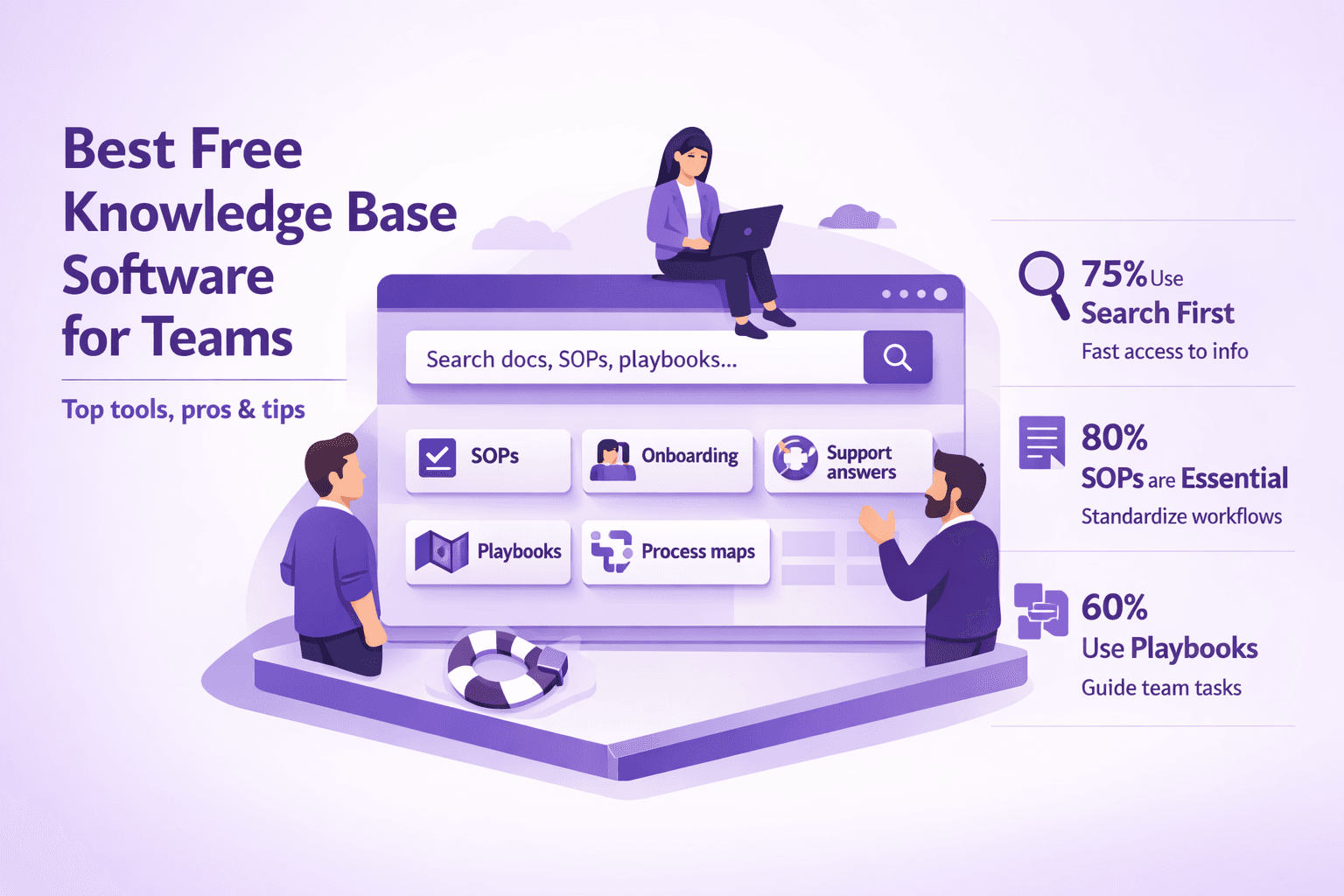
A knowledge base is where your team keeps the who-knows-what of your business — SOPs, onboarding, support answers, playbooks, process maps. The software that stores and serves that content is the difference between a searchable resource and a forgotten folder full of outdated docs.
Free options matter because most teams don't need an enterprise platform on day one. A good free knowledge base can save hundreds of hours in onboarding and support, stop people from repeating the same mistakes, and buy you time to define the content and processes before committing budget. That said, free also means limits: storage caps, user controls, branding locks. This guide helps you pick the best free knowledge base software for your needs — and shows when you should upgrade.
Who this guide is for: business analysts, consultants, tech and operations managers, and anyone responsible for documentation, SOPs, or knowledge transfer. If you’re the person who gets pinged at 3 p.m. asking “how do I grant X access?” this is for you.
What to expect: I’ll explain evaluation criteria (search, permissions, integrations), shortlist the top free tools with honest pros/cons, give practical setup and governance advice, and show migration and security steps. I’ll also point out when a paid option — like Lyren AI, which turns screen recordings into step-by-step docs and adds an AI assistant — makes sense.
Why Your Team Needs a Knowledge Base
You already know documentation is useful. Here’s the payoff in business terms, backed with examples you can actually use.
- Faster onboarding. Instead of 3 back-and-forth Slack threads and a 90-minute knowledge transfer, new hires can follow a 30–45 minute "first 7 tasks" checklist. That shaves days off productivity ramp.
- Lower support load. Well-written articles reduce repetitive help requests. Expect ticket deflection rates of 20–50% in many teams once a KB is in place.
- Consistent processes. Ops teams can keep runbooks for incident response, SRE teams can keep postmortem templates, and consultants can keep client playbooks—so everyone follows the same steps.
- Institutional memory. Analysts preserve assumptions and dashboards' logic. That prevents surprises when someone leaves.
Use cases by role:
- Business analysts: change logs, data dictionary, query patterns, dashboard troubleshooting, sample SQL snippets.
- Consultants: reusable engagement templates, client onboarding checklists, deliverable templates, ready-to-send discovery questionnaires.
- Operations managers: incident triage playbooks, vendor contact lists, recurring maintenance SOPs, escalation paths.
When a free solution is appropriate vs paid:
- Use free when you’re validating processes, or the team is <10 active contributors and content is simple (pages, FAQs, checklists).
- Move to paid when you need advanced search, SSO, audit logs, guaranteed uptime, or automation that consumes videos/recordings into structured docs (that's where tools like Lyren AI shine).
Evaluation Criteria: How to Compare Free Knowledge Base Software
Not every free plan is created equal. When you compare options, be deliberate — here's what matters.
Core features
- Content editor: Do you need Markdown, rich text, or structured fields? Markdown/structured editors (GitHub Wiki, Read the Docs) are great for developer docs; rich editors (Notion, Confluence) work for mixed teams.
- Search quality: Look for full-text search and indexing speed. Search algorithms that support synonyms and fuzzy matching are winning features.
- Organization: Does the tool support folders, book-like hierarchies, tags, or both? For SOPs you’ll want clear hierarchies and tags for cross-cutting topics.
Collaboration and permissions
- Versioning: Can you see history and revert? This prevents "who changed the deploy command" headaches.
- Roles: Are there granular roles (viewer, editor, admin)? Free plans sometimes let anyone edit.
- Access controls: Important for client-specific docs or HR information.
Integrations, export/import, mobile, API
- Integrations: Slack, Microsoft Teams, Jira, GitHub, CRMs — these can be deal-breakers.
- Export/import: Ensure you can export to Markdown/HTML/PDF for migration. If you’re stuck with proprietary formats, you'll pay later.
- Mobile: Field teams need readable mobile pages.
- API availability: If you want automation — e.g., generating docs from CI pipelines or videos — an API is a must.
Limitations in free plans
- Storage limits, user counts, contributor caps.
- Branding: Some free plans add vendor branding or don't allow custom domains.
- Usage caps: API rate limits or monthly page views.
Security, compliance, and support
- SSO (SAML/OAuth) and audit logs are usually paid features.
- For regulated industries you’ll need SOC 2, ISO 27001, or HIPAA — unlikely in free plans.
- Support: free plans often mean community support only.
Top Free Knowledge Base Tools (Shortlist & Quick Verdicts)
Here are six practical options I recommend, with honest pros and cons and when to pick each.
-
Notion (free tier)
- Pros:
- Flexible pages, templates for SOPs, onboarding checklists, and project docs.
- Drag-and-drop, embed Google Sheets, Figma, videos easily.
- Cons:
- Limited admin controls on the free tier; search can struggle as content scales.
- Export is page-by-page for complex spaces (you can export as HTML/Markdown but expect cleanup).
- Best for: Small teams and consultants who want fast structure without ops overhead.
- Pros:
-
Confluence (Atlassian) — free for small teams (up to 10 users)
- Pros:
- Strong page hierarchy, great Jira integration, fine-grained permissions in paid tiers.
- Good for internal ops and product teams with lots of process docs.
- Cons:
- Can feel heavy and slow; free tier lacks some enterprise features like SAML.
- Best for: Internal ops and engineering teams that already use Jira.
- Pros:
-
GitHub/GitLab Wiki + README-hosted docs
- Pros:
- Markdown-first, versioned via Git, ideal for developer-focused knowledge.
- Free for public and private repos; integrates directly with CI.
- Cons:
- Not friendly to non-technical users; lacks WYSIWYG editing.
- Best for: Dev teams documenting APIs, CLI tools, and release processes.
- Pros:
-
BookStack (open source, self-host or managed)
- Pros:
- Book-like hierarchy (books → chapters → pages), easy to self-host, strong privacy.
- Good for internal ops with strict data control needs.
- Cons:
- Requires hosting/maintenance if self-hosted; SSO and advanced auth require setup.
- Best for: Ops teams and companies that want full control and no vendor lock-in.
- Pros:
-
Read the Docs (free for open-source docs)
- Pros:
- Built for technical documentation with Sphinx/Markdown; automatic builds via Git.
- Great search for code-level docs.
- Cons:
- Not suited for SOPs or business documentation; setup requires docs-as-code skills.
- Best for: Software projects and analyst teams maintaining documentation tied to code.
- Pros:
-
Stack Overflow for Teams — Free plan exists
- Pros:
- Q&A format surfaces fast answers and builds searchable tribal knowledge.
- Very fast search and great UX for question/answer lifecycle.
- Cons:
- Not structured for process docs or step-by-step SOPs; best for quick questions.
- Best for: Support-oriented teams and engineers who answer repeat questions.
- Pros:
-
Google Sites (free with Google Workspace)
- Pros:
- Fast to publish, easy embedding from Drive, simple permissions via Google accounts.
- Great for external-facing documentation or client portals.
- Cons:
- Limited structure and no built-in version control; search depends on Google Drive.
- Best for: Consultants creating client-facing playbooks or public KB pages.
- Pros:
-
Slab (free tier)
- Pros:
- Clean UI, strong search, integrations with Slack and Google Workspace.
- Templates for onboarding and SOPs.
- Cons:
- Free tier limits on admin features and SSO.
- Best for: Small to mid teams wanting a modern KB without heavy setup.
- Pros:
Notes on vendor reliability and upgrade paths:
- If you start on Notion or Confluence, you can scale into paid plans for SSO and audit logs.
- Open-source tools like BookStack give you export freedom, but expect operational maintenance.
- If your docs need to include recorded UI flows and step-by-step video-derived content, consider upgrading to a platform built for that — Lyren AI will convert screen recordings into structured docs and add an AI assistant to answer questions across your KB.
Feature Comparison and Plan Limits (Side-by-Side)
Below is a pragmatic comparison for the tools above. These are typical characteristics; always check the provider's current plan docs before you commit.
| Tool | Editor | Search | User Limits (Free) | Export | Integrations (typical) | SSO on Free? |
|---|---|---|---|---|---|---|
| Notion | Rich/WYSIWYG, blocks | Full-text, basic filters | Small teams / guests allowed | HTML/Markdown export (some cleanup) | Slack, Google Drive, Zapier, API | No |
| Confluence | Rich text, templates | Full-text, page hierarchy | Up to 10 users free | HTML/PDF export | Jira, Slack, MS Teams | No (paid) |
| GitHub/GitLab Wiki | Markdown | Git-backed search | Depends on repo | Full Markdown via repo | CI/CD, GitHub Actions, webhooks | GitHub SSO for orgs |
| BookStack | Rich text + Markdown | Full-text, page hierarchy | Self-host (no limit) | HTML/PDF/Markdown | OAuth/LDAP with setup | Yes (self-host via SSO) |
| Read the Docs | ReST/Markdown builds | Sphinx search | Free for OSS | HTML, PDF builds | GitHub/GitLab integration | No |
| Stack Overflow Teams | Q&A editor | Powerful search | Small team free plan | CSV export of content | Slack, SSO (paid) | No (paid) |
| Google Sites | Rich editor | Google search across site | Tied to Google Workspace | HTML export limited | Drive, Calendar, Analytics | Depends on Workspace |
| Slab | Rich editor | Fast search with synonyms | Free for limited users | HTML/Markdown export | Slack, Google Workspace, Zapier | No (paid) |
When a free plan will force upgrade — common triggers:
- You hit user limits (often the first trigger).
- You need SSO/SAML for security.
- You need guaranteed uptime, SLAs, or dedicated support.
- You need programmatic access (API) beyond rate caps.
- You want advanced analytics or audit logs.
Real-world thresholds:
- 10–25 active editors: you’ll likely need paid features for admin controls.
- 500+ docs: search and organization become strategic problems; you’ll want advanced search and content analytics.
- Frequent client-specific docs: you’ll need fine-grained access controls and custom domains.
Implementation & Best Practices for Free KB Tools
Setting up a KB is half product thinking, half documentation craft. Here’s a practical playbook you can implement in a day.
Quick-start setup checklist
- Pick the primary content owner (person or role).
- Create top-level categories (Onboarding, SOPs, Playbooks, FAQs, Runbooks).
- Add 5–7 starter pages: new-hire checklist, incident triage, vendor onboarding, billing process, “how to grant access.”
- Create templates: SOP, checklist, playbook, meeting note. Use these consistently.
- Set naming conventions and a slug policy (see example below).
- Invite the team and schedule a 30-minute KB walkthrough.
Example naming conventions (quick and consistent):
[Category] - [Subcategory] - [Short Descriptor]
Example:
Onboarding - Engineering - First 7 Tasks
SOP - Payments - Refund Workflow
Runbook - DB - Restore from Snapshot
Content governance: ownership and reviews
- Assign an owner for each page or folder (owner is responsible for accuracy).
- Review cadence: critical runbooks — quarterly; procedural SOPs — every 6–12 months; FAQs — every 3 months.
- Use version control or page history to track changes. If your tool lacks native history, keep a changelog page per document.
Templates: speed and consistency
- SOP template should include: Purpose, Scope, Preconditions, Steps, Expected Outcome, Rollback, Contacts, Last Updated.
- Playbook template: Trigger, Pre-checks, Decision points (with diagrams), Execution steps, Follow-up tasks.
Search optimization and metadata strategies
- Use short, descriptive titles. Don’t bury the key action in a paragraph.
- Add tags for cross-cutting concerns (e.g., #security, #customer-facing, #billing).
- Add a "TL;DR" or short summary at the top of each page (search often surfaces titles and top lines).
- For step-by-step tasks, use numbered steps instead of paragraphs — search algorithms tend to surface lists better.
- Include common keywords and synonyms in a "Search terms" field at the bottom of the page. For instance, a refunds SOP should include "chargeback", "refund", "return", and "reimbursement".
Low-cost automation and integration tips
- Use Zapier or Make to auto-create KB pages from templates when PRs merge or when SOPs are submitted via forms.
- Slack integration: allow users to search or pin KB articles directly in Slack with simple slash commands.
- Analytics: add Google Analytics to public or intranet KB to track top pages and search queries. That data tells you where the KB is failing.
- For screen recordings: record Loom or Zoom videos and store them alongside step-by-step notes. If you want automated extraction of steps from recordings, evaluate platforms like Lyren AI (converts UI videos into structured docs and diagrams), which reduces manual doc creation time dramatically.
Scaling, Migration, and Security Considerations
Planning for the future prevents painful migrations and security surprises.
Migrating content between KB platforms
- Export formats to check: Markdown, HTML, PDF, XML. Markdown is the easiest to cleanly migrate.
- When moving from WYSIWYG tools (Notion, Confluence) to docs-as-code, expect cleanup: embedded blocks, tables, and attachments may need manual adjustments.
- Strategy:
- Audit current content and mark pages as "Keep", "Archive", or "Delete".
- Export "Keep" pages in bulk where possible.
- Script transforms for common pattern fixes (a simple Python script using regex or pandoc often does the job).
- Run a pilot import with a subset (5–10 pages) to validate formatting and integrations.
- Tools that help: Pandoc for format conversion, GitHub Actions for automating imports, and simple CSV importers for metadata.
Planning for growth: when to move from free to paid
- Your indicators:
- Security: Need SSO, audit logs, or stricter access control.
- Reliability: Need SLA/uptime guarantees for customer-facing docs.
- Scale: Search performance degrades and you need content analytics.
- Automation: You need APIs or programmatic publishing from CI/CD or video-processing tools.
- Migration-friendly platforms: prefer systems that export clean Markdown or provide API-based bulk export.
Security essentials
- Access controls: enforce least privilege — not everyone needs edit rights.
- SSO and MFA: when you have >50 employees or client-specific private content, insist on SSO and multi-factor authentication.
- Backups: schedule regular exports of the KB and store in versioned cloud storage (S3 with versioning or a Git repo).
- Compliance checkpoints: if you process regulated data, confirm vendor compliance certifications and data residency options.
Practical Examples & Templates
A couple of concrete, copy-paste-ready templates for common scenarios.
SOP template (Markdown)
# SOP - [Short Title]

Purpose
- Brief description of why this exists.

Scope
- Who and what systems are impacted.

Prerequisites
- Accounts, permissions, or tools needed.

Steps
1. Step one — what to do, with screenshots if needed.
2. Step two — expected outputs.
3. Decision: if X then go to step 5, else continue.

Rollback
- How to revert changes (commands, contact points).

Owner
- Name, email, escalation contact.

Last reviewed
- YYYY-MM-DD
Onboarding quick checklist (short)
- Create email and accounts (Admin)
- Grant Slack channels and project access
- Assign buddy for first 30 days
- First 7 tasks doc (link)
- 1:1 schedule with manager
Search-boost metadata strategy
- At the bottom of each page add:
Search keywords: refund, chargeback, returns, reverse payment
Audience: finance-team, support
Last updated: 2025-01-15
When Free Isn't Enough — Where AI Tools Fit
Free KB software does a lot, but it struggles with two manual-heavy areas:
- Converting onboarding recordings and screen flows into shareable, step-by-step docs.
- Answering natural language questions across mixed media (text + video + diagrams).
If your team runs a lot of recorded walkthroughs, or if you want an AI to answer questions across documentation, consider platforms designed for that workflow. Lyren AI, for example, processes screen recordings into structured steps, generates process flow diagrams automatically, and provides an AI assistant to answer questions over your documents. That saves hours per doc and keeps process maps accurate as UI changes.
Use case where upgrading makes sense:
- You have 50+ onboarding videos and need canonical, text-based SOPs for training new hires.
- You want a searchable assistant that answers "How do I add a user in the Admin panel?" and returns the exact step from a recorded video.
Conclusion
Choosing the best free knowledge base software comes down to matching features to needs:
- If you want speed and flexibility for mixed teams and lightweight SOPs: Notion or Slab are great starting points.
- If you need Jira integration and structured internal ops docs: Confluence is a solid pick.
- If you're technical and want versioned, code-centric docs: GitHub/GitLab Wiki or Read the Docs.
- If you want full control and don’t mind hosting: BookStack.
- If you need a fast Q&A style KB: Stack Overflow for Teams.
Final recommendations by role:
- Business analyst: Start with Notion for flexible dashboards and data dictionaries; use GitHub Wikis for technical docs tied to repos.
- Consultant: Google Sites or Notion for client-facing playbooks and easy sharing.
- Ops manager: Confluence or BookStack for runbooks and strict access control.
Next steps — pilot checklist and metrics to evaluate success:
- Pilot checklist (2-week pilot)
- Pick 5 critical pages (onboarding, incident triage, top 3 support FAQs).
- Assign owners and publish.
- Integrate search into Slack or Teams.
- Collect feedback from 10 users in a week.
- Metrics to track
- Time-to-first-answer for common questions (target: reduce by 30%).
- Ticket deflection rate (target: 20–40% within 3 months).
- Onboarding time-to-productivity (measure tasks completed in first 14 days).
- Number of stale pages (identify pages not updated for >6 months).
If the pilot hits limits — too many manual videos, slow search, no SSO — consider upgrading to a paid platform that supports automated conversion of recordings into docs and an AI assistant. Lyren AI is one example of a tool that shortens documentation cycles by converting UI videos into structured, searchable steps and process diagrams, with a 7-day trial if you want to test the value quickly.
You don’t need a fancy stack to win at knowledge sharing. Start small, measure what matters, and standardize what works. When documentation becomes part of your team's routine, onboarding gets faster, incidents get calmer, and your organization doesn't fall apart when the person who "knows how" moves on.